To post messages and upload files to a Slack channel from Go, you need a Slack app that has bot permissions, the bot token, and the ID of the target channel. This walkthrough uses the slack-go package and keeps the examples small enough to run directly.
Prepare the Slack app
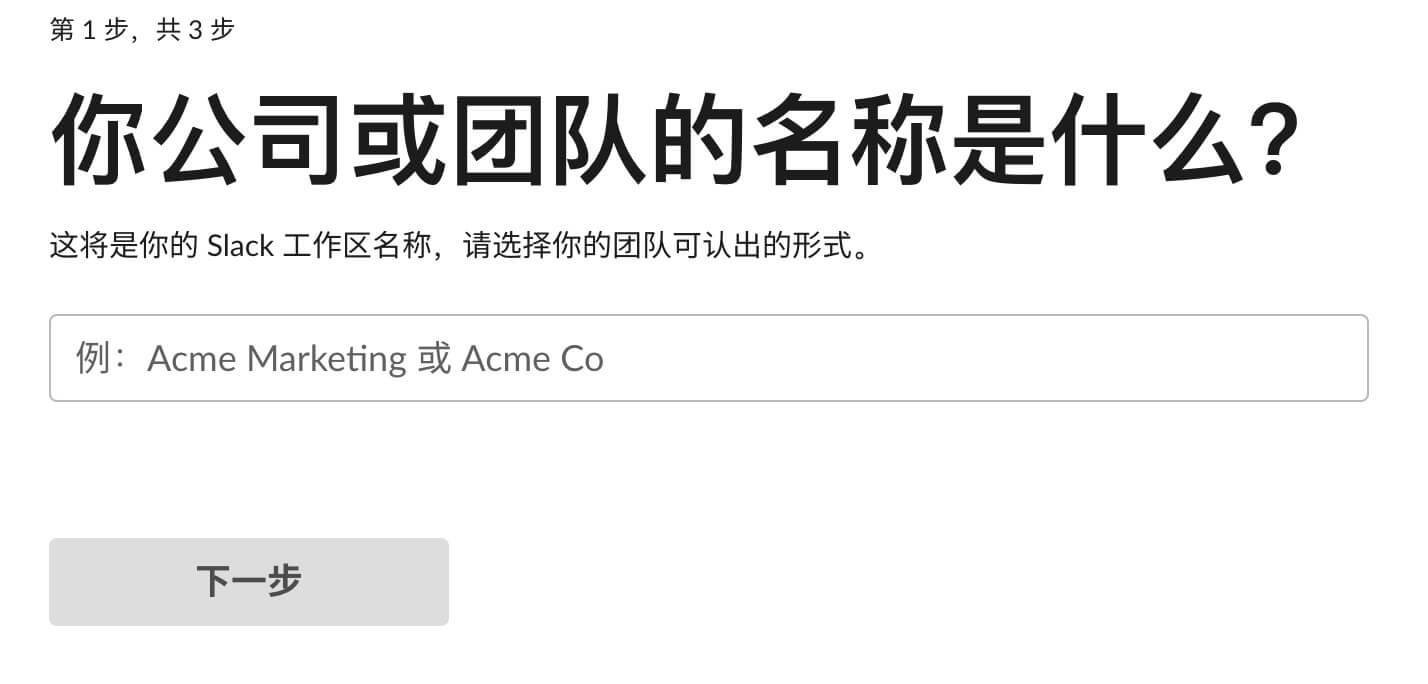
A separate test workspace keeps experiments away from production. Create one from Slack or the Slack app dashboard by choosing Create Workspace.
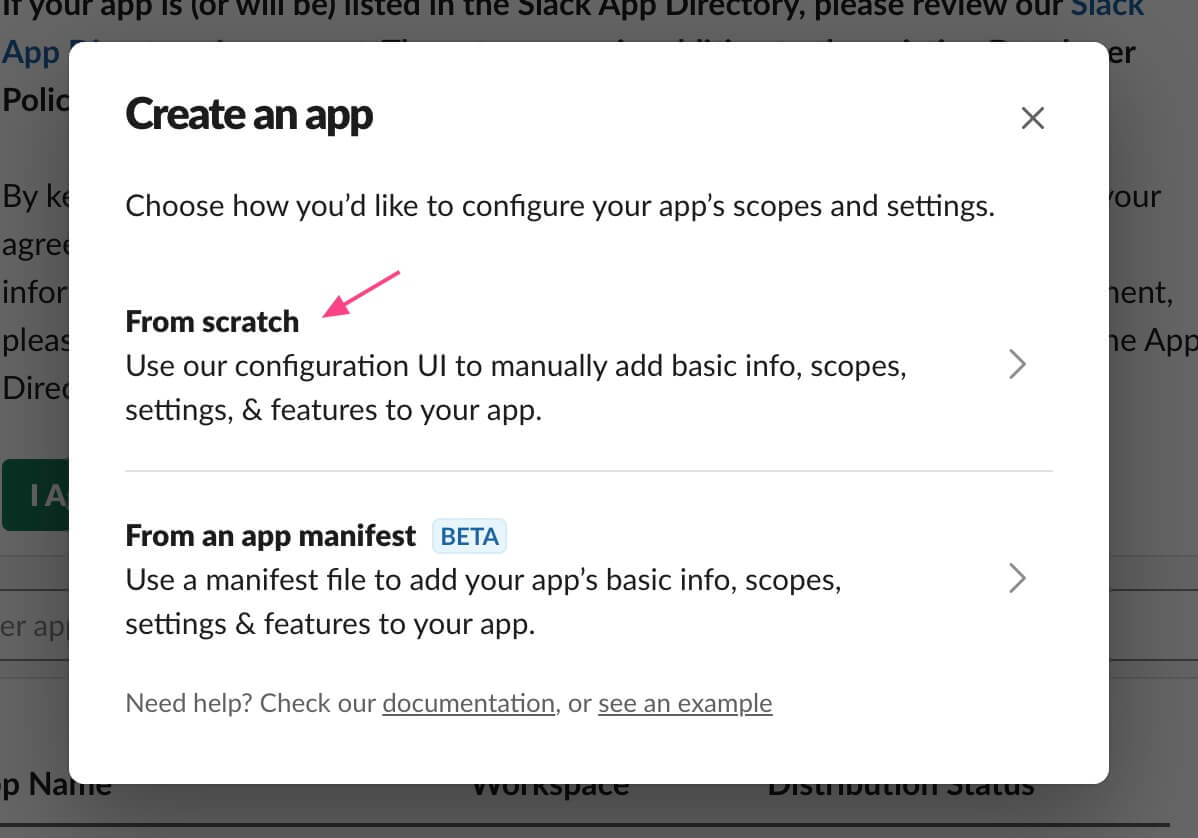
Next, create the app at https://api.slack.com/apps/new with the From scratch option.
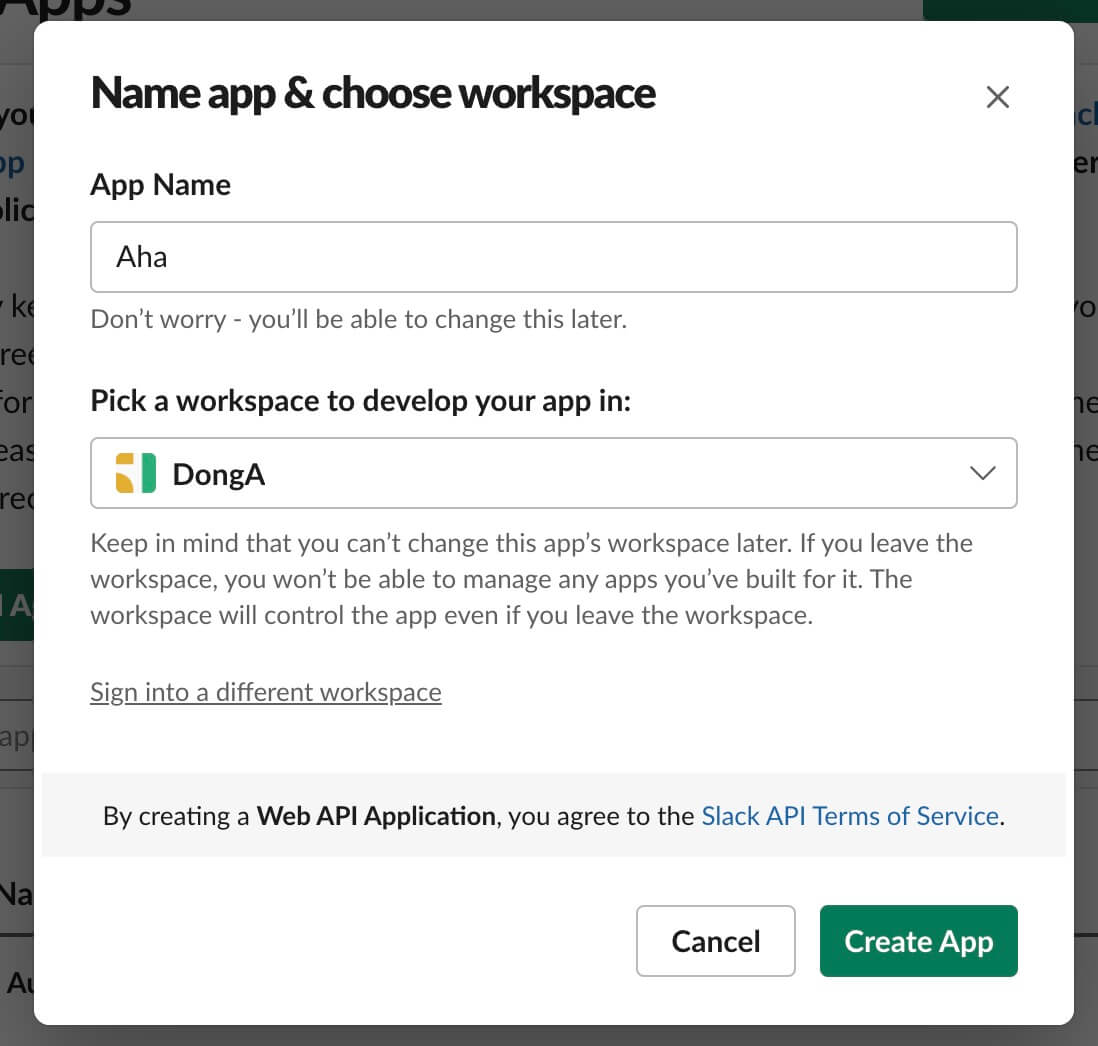
Give the app a name and select the workspace it should belong to.
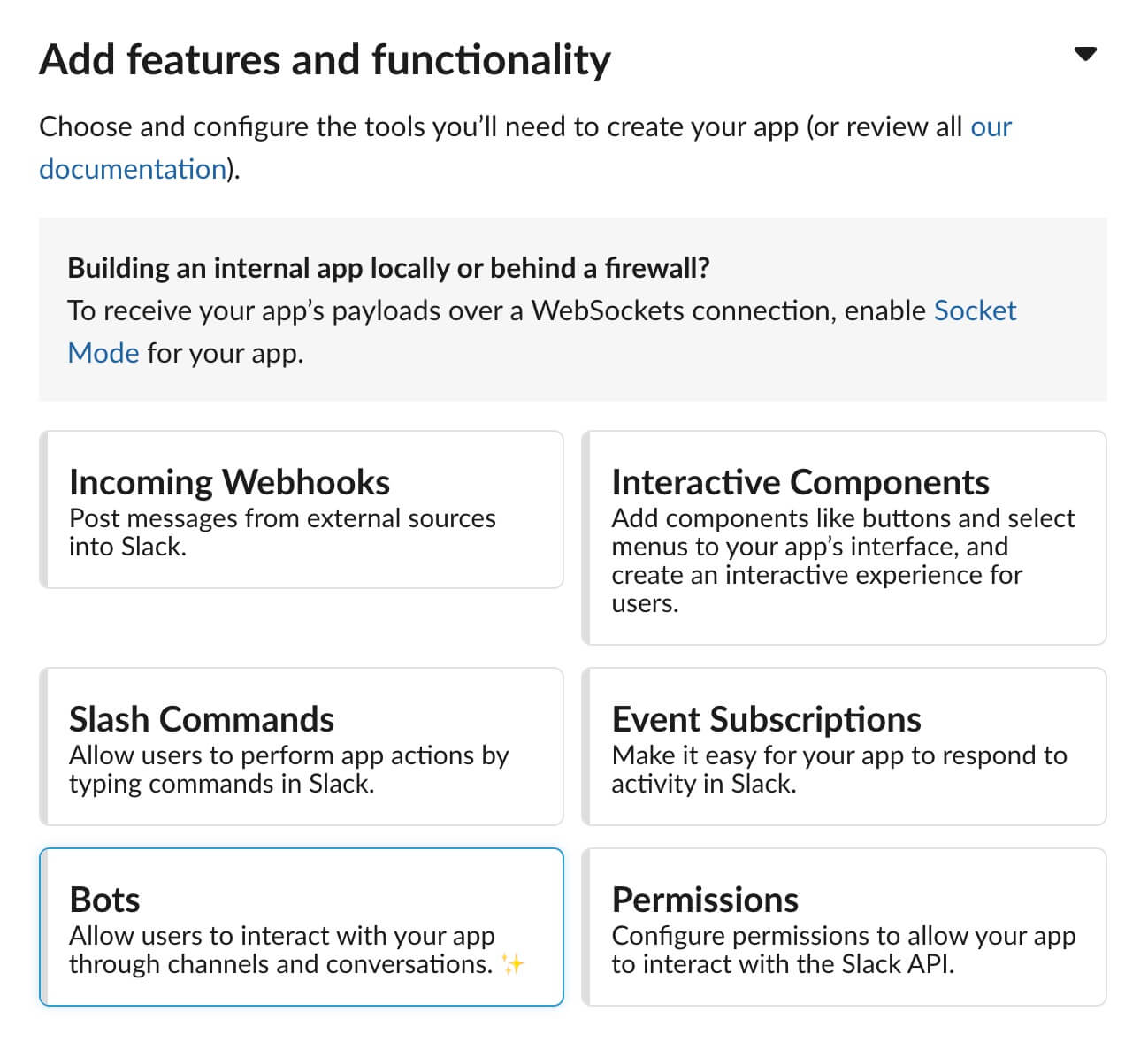
Choose the Bots app type.
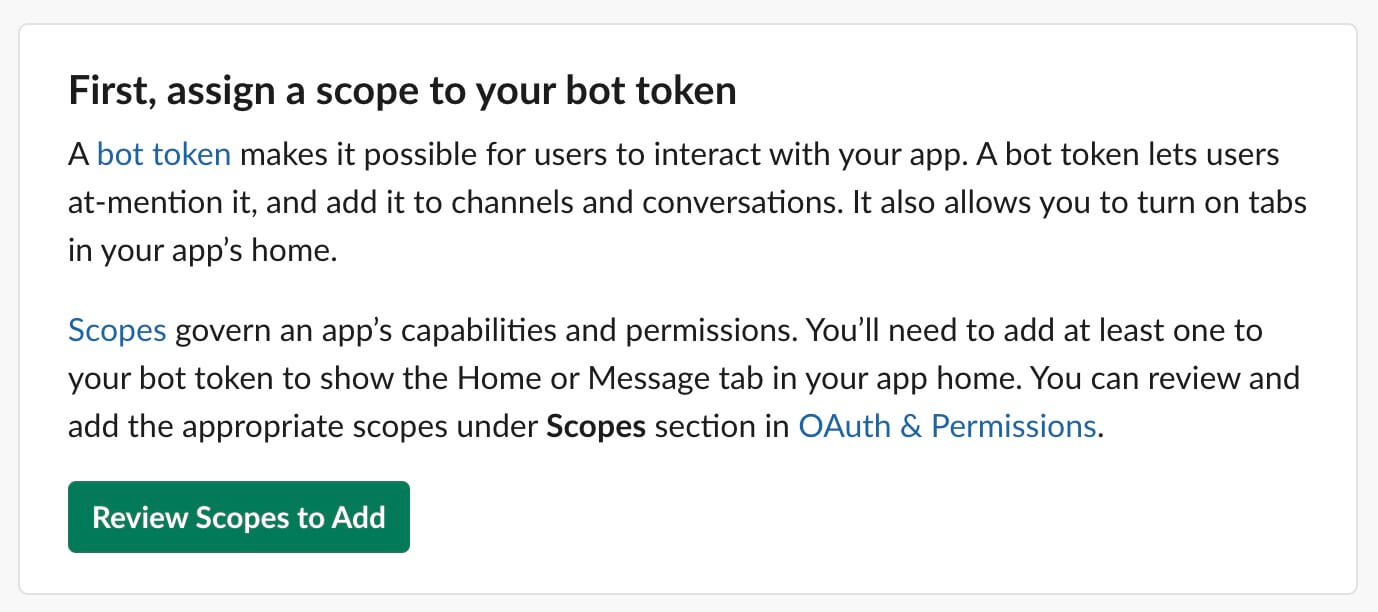
Once inside the app, click through to configure scopes and permissions.
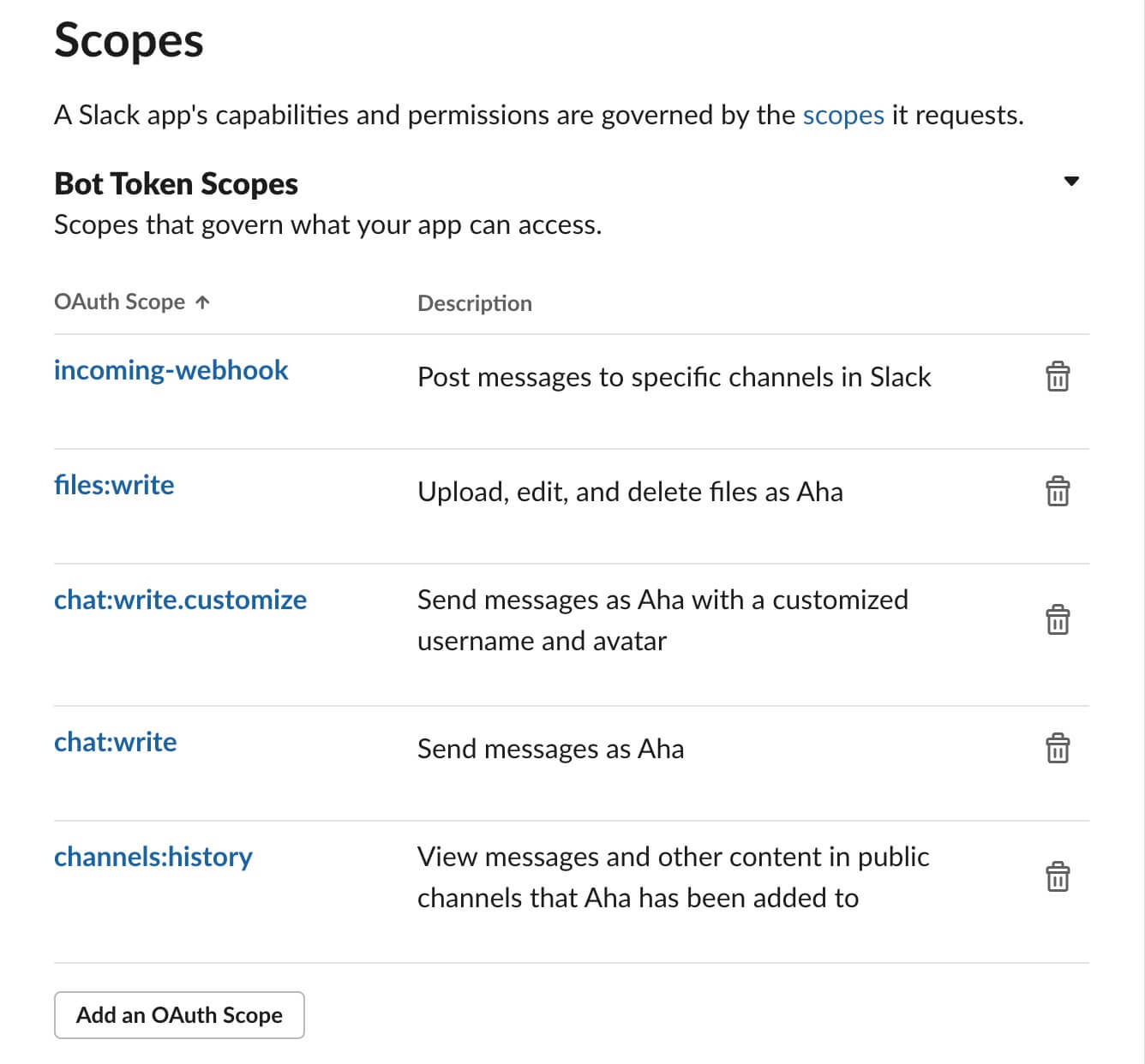
In the Scopes section, use Add an OAuth Scope to add the permissions the bot needs.
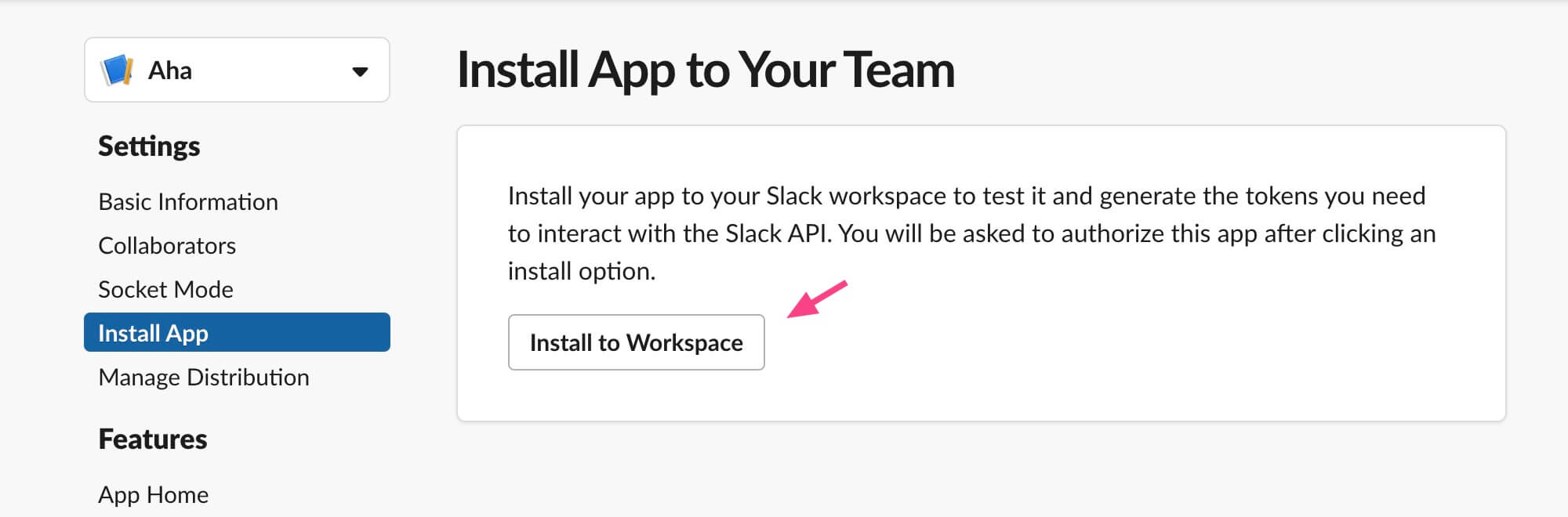
After the scopes are in place, open Install App from the left sidebar and install the app.
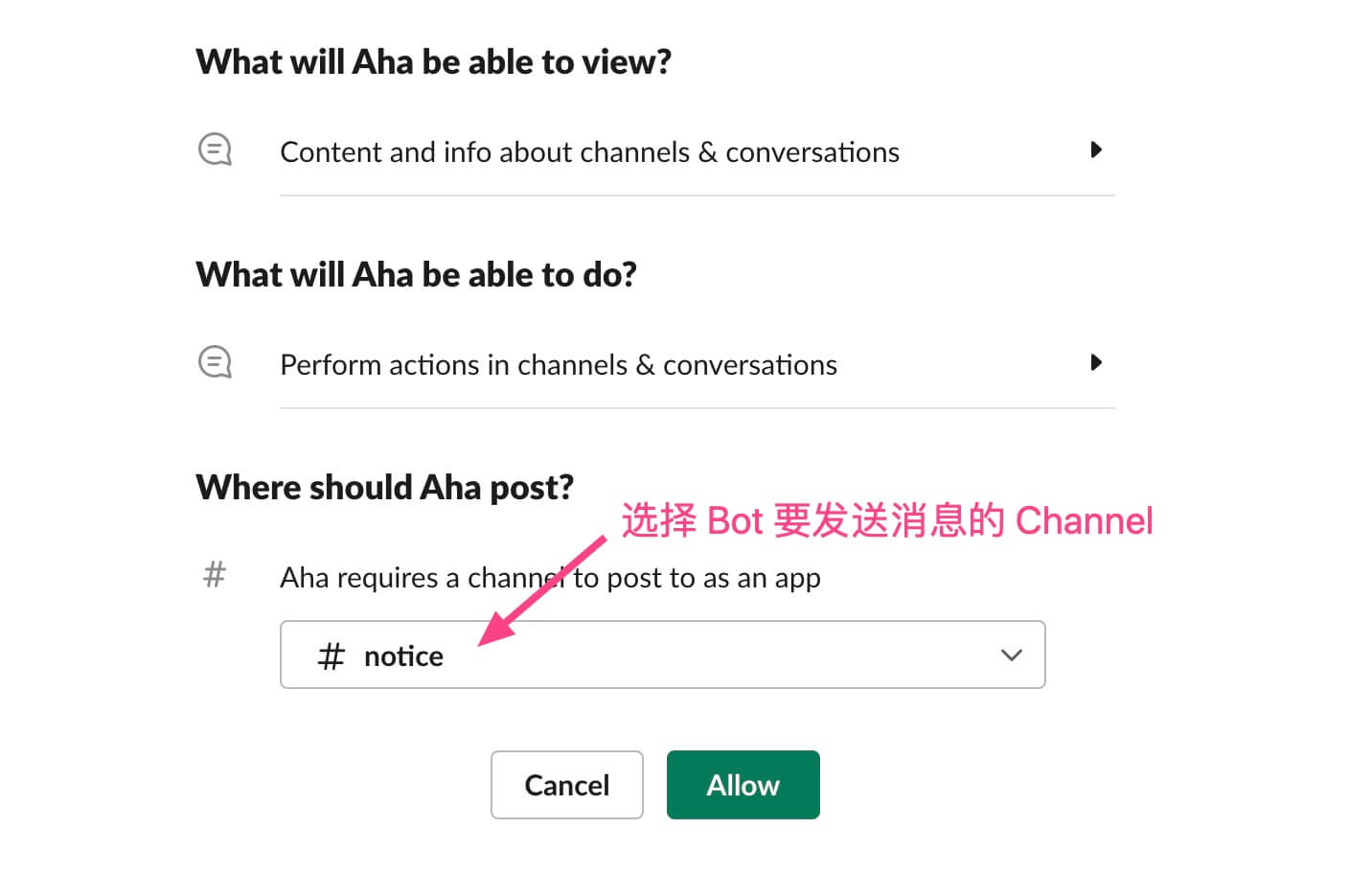
Select the channel and click Install; the Settings page will appear.
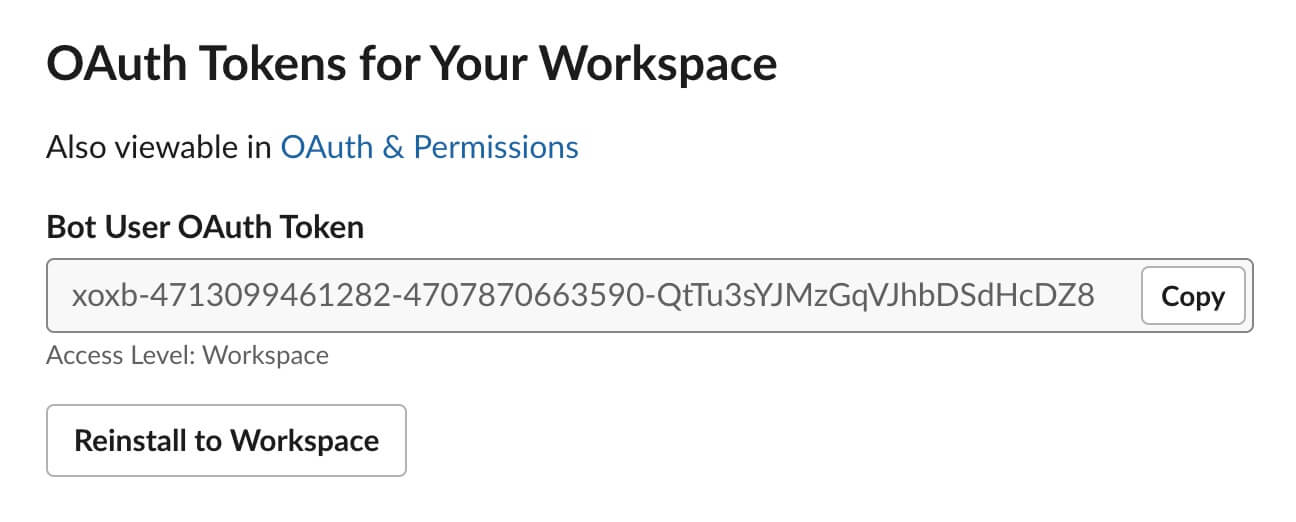
Copy the Bot User OAuth Token. The Go program will use it later.
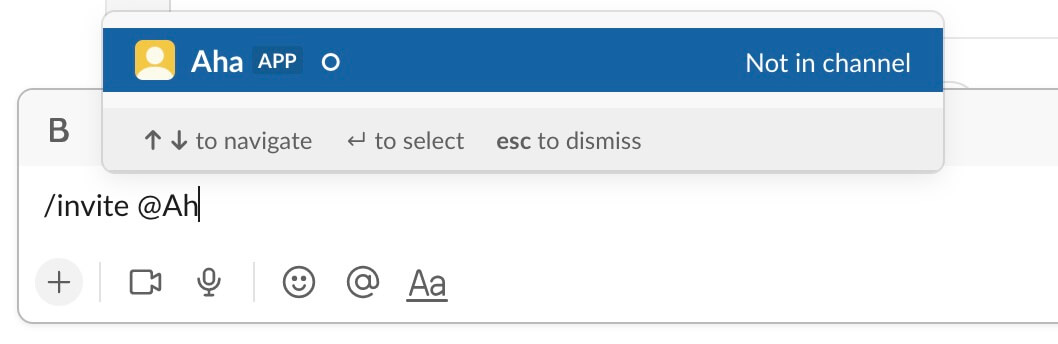
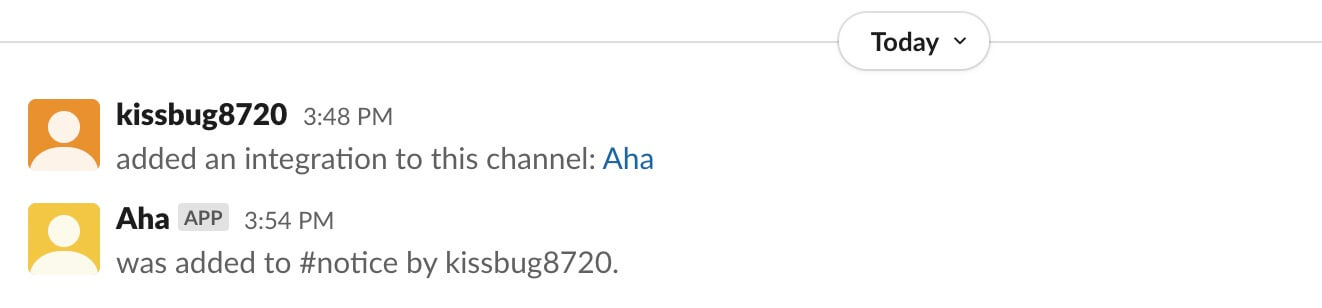
Now invite the bot into the channel. In this example, the bot is called Aha.
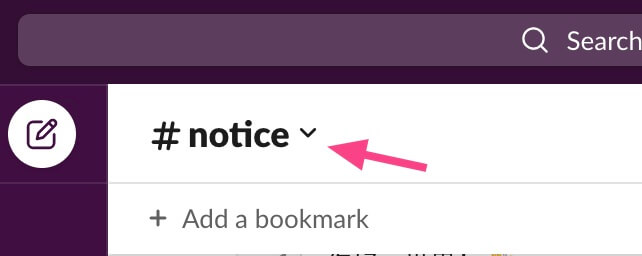
You also need the Channel ID. Click the channel and look at the bottom of the page; the ID shown there is the channel ID used by the Go program.
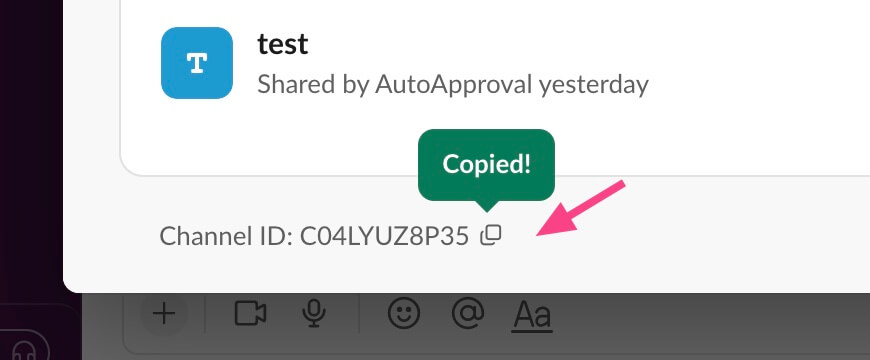
At this point, you have the two values the code needs: the Bot User OAuth Token and the Channel ID.
Store the credentials
In the project directory, create a .env file and put both values in it.
SLACK_AUTH_TOKEN="your-auth-token"
SLACK_CHANNEL_ID="your-channel-id"
Send a message
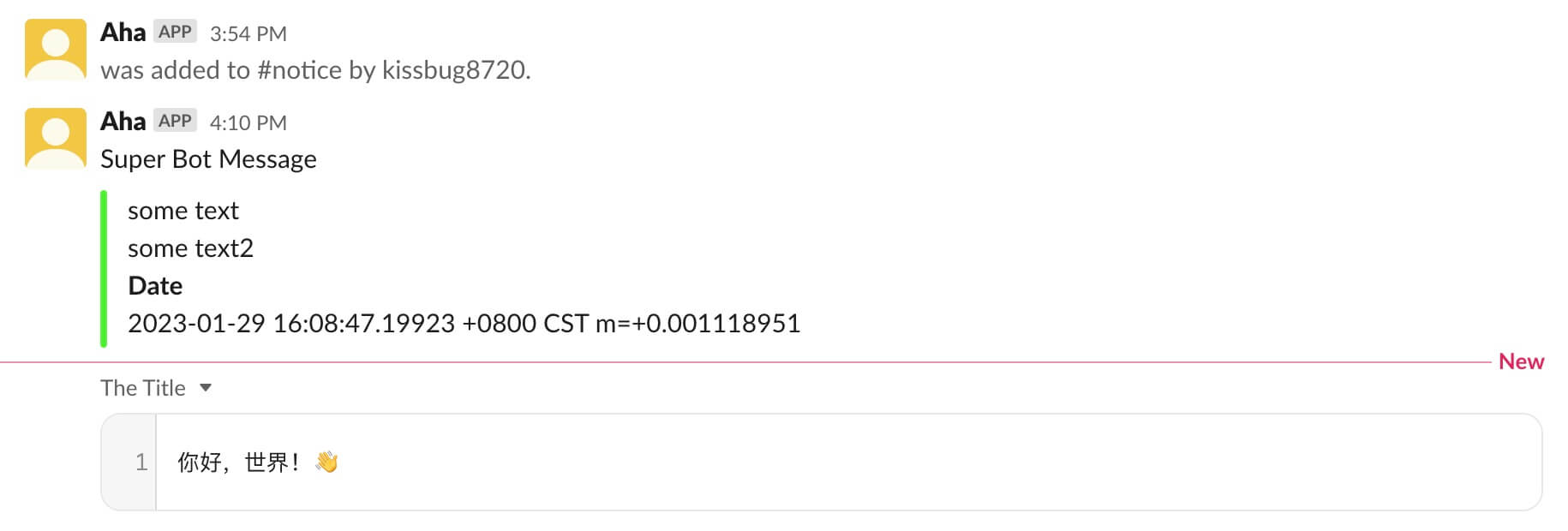
The program below loads the token and channel ID from .env, creates a Slack client with debug output enabled, and posts an attachment. The attachment includes a pretext, text, a color, and a Date field.
package main

import (
    "fmt"
    "os"
    "time"

    "github.com/joho/godotenv"
    "github.com/slack-go/slack"
)

func main() {

    godotenv.Load(".env")

    token := os.Getenv("SLACK_AUTH_TOKEN")
    channelID := os.Getenv("SLACK_CHANNEL_ID")

    client := slack.New(token, slack.OptionDebug(true))
    attachment := slack.Attachment{
        Pretext: "Super Bot Message",
        Text:    "some text\nsome text2\n",
        Color:   "4af030",
        Fields: []slack.AttachmentField{
            {
                Title: "Date",
                Value: time.Now().String(),
            },
        },
    }

    _, timestamp, err := client.PostMessage(
        channelID,
        slack.MsgOptionAttachments(attachment),
    )

    if err != nil {
        panic(err)
    }
    fmt.Printf("Message sent at %s", timestamp)
}
Upload a file
Create test.txt in the project root and write 你好,世界! 👋 into it.
package main

import (
    "fmt"
    "github.com/joho/godotenv"
    "github.com/slack-go/slack"
    "os"
)

func main() {

    godotenv.Load(".env")

    token := os.Getenv("SLACK_AUTH_TOKEN")
    channelID := os.Getenv("SLACK_CHANNEL_ID")

    client := slack.New(token, slack.OptionDebug(true))

    params := slack.FileUploadParameters{
        Channels: []string{channelID},
        Title:    "The Title",
        File:     "test.txt",
    }
    file, err := client.UploadFile(params)
    if err != nil {
        panic(err)
    }
    fmt.Printf("Message sent title is %s", file.Title)
}
Running the two programs produces a message and a file in the target channel.
More examples for the Slack Go package are available at https://github.com/slack-go/slack/tree/master/examples.