The goal here is GNOME, but the same general approach may also be useful elsewhere—for example, when dealing with per-application theme settings.
This is not an officially supported GNOME workflow. It depends on behavior GNOME does not promise to keep stable, so future releases could break it.
It also involves modifying system behavior and user configuration. If you are not sure what you are doing, do not apply these steps casually, and back up your existing configuration first.
Update history
- 2023.07.22 First draft
- 2023.09.03 Added notes about the Auto Dark Mode plugin
After reinstalling a laptop with Arch Linux and setting GNOME as the desktop, one thing quickly stood out: unlike macOS, GNOME does not provide a built-in way to switch color mode automatically on a schedule. That started a fairly long round of trial and error.
Eventually, a more complete setup emerged: automatic light/dark switching by time or by sunrise and sunset, support for custom themes, and a way to push the change across more than just GTK3 apps.
Where the problem actually is
GNOME does have a dark mode, but it is primarily designed around GNOME’s own Adwaita-dark theme. If you are happy using the default look, that is actually good news: compatibility is usually solid across GNOME applications, and many toolkit integrations already assume Adwaita. Qt applications may still need extra work, but the baseline is much better.
That changes once you want custom themes.
When a custom GNOME Shell or GTK theme is applied through the preinstalled User Themes extension, another issue appears: even if the theme supports GTK4, some GTK4 applications—especially core GNOME apps installed by default—may continue using Adwaita instead of the custom theme. And for many Qt or Electron applications, that route does nothing at all.
The GTK4 part is not accidental. GNOME has explained at length why “themes” work differently there, so the short version is simply this: GTK4/libadwaita applications are not meant to be themed in the same way older GTK apps were.
Flatpak adds another obstacle. Flatpak applications run in a sandbox separated from the host system, so themes installed on the main system are not automatically visible inside that environment.
Qt is a different story again. Its theming system is separate from GTK, so custom GTK themes—and even dark mode in general—do not automatically carry over to Qt applications. Without extra configuration, Qt apps will not follow GNOME’s theme state.
And then there is the automation side. GNOME, like many desktop environments, does not offer scheduled light/dark switching by default. So if the goal is sunrise/sunset switching with custom themes, several different problems need solving at once.
What needs to be solved
A complete setup comes down to four separate tasks:
- Make GTK4 applications use a custom theme.
- Allow Flatpak applications that rely on system UI components to read the current host theme.
- Make Qt applications follow the system theme.
- Ensure that switching light and dark mode also switches the actual custom themes you want to use.
The good news is that each of these has a workable solution.
Before dealing with special cases, though, it makes sense to start from the foundation: automatic switching itself, with custom light and dark themes.
Preparation
First, install the GNOME Shell extension Night Theme Switcher. This is what handles timed switching or sunrise/sunset switching, and it can also change themes.
You will also need two themes: one for light mode and one for dark mode. They can be two unrelated themes or light/dark variants of the same family. In the example setup here, vimix-gtk-theme is used for light mode and Nordic for dark mode.
Whichever themes you choose, they should ideally meet these conditions:
- GTK4 support
- preferably a matching Kvantum theme
- something you actually want to look at every day
Once you have them, place them in ~/.themes. If that directory does not exist, create it.
It also helps to find matching icon themes and cursor themes, so the desktop looks coherent. If you want to go further, you can also hunt down matching themes for individual applications.
You will also need Kvantum for Qt theming.
Configuring Night Theme Switcher
If you like sticking with Adwaita, you can skip ahead to the Adwaita-specific section.
Night Theme Switcher is often enabled immediately after installation, but it still needs configuration.
Open the extension settings. In the Schedule section, you can either define fixed switch times manually or disable manual scheduling and let it follow sunrise and sunset.
If you want switching to happen relative to sunrise or sunset, or the extension cannot determine those times, allow GNOME location access:
- open Settings
- go to Privacy
- open Location Services
- enable location access
Without that, the extension cannot calculate sunrise and sunset and may fall back to manual scheduling.
The Background section lets you set separate wallpapers for light and dark modes.
The Commands section is important later, because it can run custom commands at switch time. That is how GTK4, Qt, and some other components will be handled.
In the Themes section, you can choose which theme elements should switch. In most cases, changing GTK theme and icon theme is enough.
Extra setup for GTK4
Night Theme Switcher can run commands when the mode changes, and that can be used to work around GTK4 applications not following a custom theme.
GTK4 themes are still CSS-based, but unlike GTK2/3, GNOME does not expose an official interface for setting an arbitrary custom GTK4 theme. So the practical workaround is to replace the active GTK4 CSS manually.
A project called odziom91/libadwaita-theme-changer demonstrates the general idea: swap the gtk.css used by GTK4 with the one from the selected theme. The file involved is:
~/.config/gtk-4.0/gtk.css
Once that is understood, the same behavior can be reproduced with a small shell script and then triggered from Night Theme Switcher.
Here is an example script for the vimix-light-doder variant of vimix-gtk-theme:
cp $HOME/.themes/vimix-light-doder/gtk-4.0/assets/* $HOME/.config/gtk-4.0/assets/


ln -s $HOME/.themes/vimix-light-doder/gtk-4.0/gtk.css $HOME/.config/gtk-4.0/gtk.css
Run it once manually and then open a GTK4 application such as Settings to verify that the theme changes correctly. Already running applications must be restarted before the new appearance shows up.
Some themes place assets somewhere other than next to gtk.css, often one directory above it. If so, the CSS may need a small adjustment.
Open the theme’s gtk.css in your editor and search for assets. If the resource path is not ./assets, then two things need to be changed:
- adjust the script so it copies the resources from the correct source path
- edit the CSS so all those asset paths become
./assets
That is necessary because GTK4 resolves resource paths relative to the location of gtk.css, and in this setup gtk.css is being used from ~/.config/gtk-4.0.
For example, the Nordic theme stores assets one level above gtk.css, so the script becomes:
cp $HOME/.themes/Nordic-[variant]/assets/* $HOME/.config/gtk-4.0/assets/


ln -s $HOME/.themes/Nordic-[variant]/gtk-4.0/gtk.css $HOME/.config/gtk-4.0/gtk.css
And every ../assets reference inside gtk.css needs to be changed to ./assets.
If pasting command blocks directly into the extension settings feels awkward, put them in shell scripts and have the extension execute those scripts instead.
For example, if the light-mode GTK4 switch script is saved as ~/.local/bin/light-theme-switcher.sh, then in the extension’s command settings you can place sh ~/.local/bin/light-theme-switcher.sh in the sunrise command field.
Extra setup for Qt
Qt theming is completely independent from GTK, so it has to be configured separately.
This is where Kvantum comes in. It provides a theming engine for Qt applications, and it also supports command-line control, which makes it suitable for automatic switching.
Before trying to switch themes from the command line, tell Qt to use Kvantum by setting this environment variable:
QT_STYLE_OVERRIDE=kvantum
After setting that, log out and back in again, or reboot if needed depending on where you defined the variable.
Then open Kvantum Manager, choose a theme, click Apply, and verify that a Qt application now uses it.
If the Kvantum theme you want is not already installed, extract the theme package, open Kvantum Manager, click Install Theme, select the extracted theme folder, and apply it.
That gets Qt applications onto Kvantum, but switching themes from the GUI is not enough for automation. For scheduled changes, use Kvantum’s command-line option:
kvantummanager --set [THEME]
Replace [THEME] with the actual theme name shown inside Kvantum Manager, usually the one with a Kv prefix.
For instance, to use the built-in GNOME-like theme:
kvantummanager --set KvGNOME
The change should take effect immediately.
At that point, add the command to the shell script created earlier, or append it to the extension command using && if you are entering commands directly.
Extra setup for Flatpak applications using system UI components
Flatpak applications run in a sandbox, so they cannot automatically read your host theme files.
The simplest workaround is to grant them access to your GTK4 config directory and user theme directory once, with these commands:
flatpak --user override --filesystem=~/.config/gtk-4.0


flatpak --user override --filesystem=~/.themes
This weakens the isolation of the sandbox and may expose more user data than before, so use it carefully.
If you want to stay with Adwaita
A lot of people will reasonably prefer Adwaita for compatibility. That path is much easier, so it is worth covering separately.
This setup was tested on Ubuntu 23.04; other distributions may differ slightly.
Adwaita has the strongest compatibility overall. It works well with GTK4, and Qt support is also possible. But Qt applications still do not automatically follow GNOME’s dark mode unless you configure them to do so.
For Qt 5 applications, you can set:
QT_STYLE_OVERRIDE=adwaita
That causes many Qt applications using standard system styles to use Adwaita.
For older Qt4 applications, qtconfig-qt4 can still be used.
If Kvantum is already installed, you can also use the KvGNOME theme in Kvantum Manager, which resembles the older Adwaita look.
Automatic switching with Adwaita
Night Theme Switcher is still the tool used here.
Configure the schedule in the extension, either with fixed times or by following sunrise and sunset. If sunrise/sunset detection fails, enable location services in GNOME Settings under Privacy.
Separate wallpapers for the two modes can be configured in the extension’s background settings, though the wallpaper switching itself is handled by GNOME.
Beyond that, very little needs to be changed. If you use custom icon themes, those can also be switched from the extension’s theme settings.
Since Adwaita has decent Qt support, there is also a simpler way to get many Qt apps to follow GNOME: install qgnomeplatform-qt5 and qgnomeplatform-qt6, then set:
QT_QPA_PLATFORMTHEME=gnome
That avoids the need for Kvantum and custom scripts in many cases.
The cleanup stage: applications that still need special treatment
With everything above in place, GNOME should now switch between light and dark modes automatically, with custom themes applied much more consistently than the default setup allows.
But there will still be applications that insist on doing their own thing. Some have separate theme engines; some simply look bad once custom themes are involved. Those need their own handling.
KDE applications
This is a broad category. Most KDE applications are built on Qt, but they do not necessarily follow the system theme in the way you would expect.
Many GNOME users may not install large numbers of KDE applications, but a few are common enough—Krita and Kate, for example.
Take Krita as a representative example. Open Settings, then go to the interface color section and choose a color scheme that matches your current theme.
If Qt theming was configured through Kvantum, Krita’s scheme list may also include matching Kvantum-based schemes.
Even with the qgnomeplatform packages installed, applications such as Krita did not reliably follow the GNOME theme automatically in testing, so manual selection is still necessary. If you want to avoid constant switching, it is usually easier to keep them on a dark theme.
Firefox
Firefox follows the system light/dark preference, so when the system is in dark mode, Firefox switches to dark mode too, and vice versa. With the default browser theme, its own interface elements such as the title bar also change accordingly, which keeps things visually coherent.
That becomes less satisfying if you prefer custom Firefox themes. In that case, a bright title bar showing up under a globally dark desktop can be unpleasant.
A browser extension can handle theme switching here. automaticDark can switch custom Firefox themes on a schedule.
Once installed, it can be configured to switch based on the system theme, sunrise/sunset, or fixed times. The system-following behavior on Linux is not especially reliable, so sunrise/sunset or manual scheduling tends to work better.
For a more complete dark-mode experience, it can be paired with Dark Reader, which also darkens website content. Another option is Midnight Lizard if you want deeper control over page colors.
OBS Studio
OBS uses the Yami theme by default, and that does not interact well with custom Qt themes. In light mode especially, some UI elements can become difficult to read.
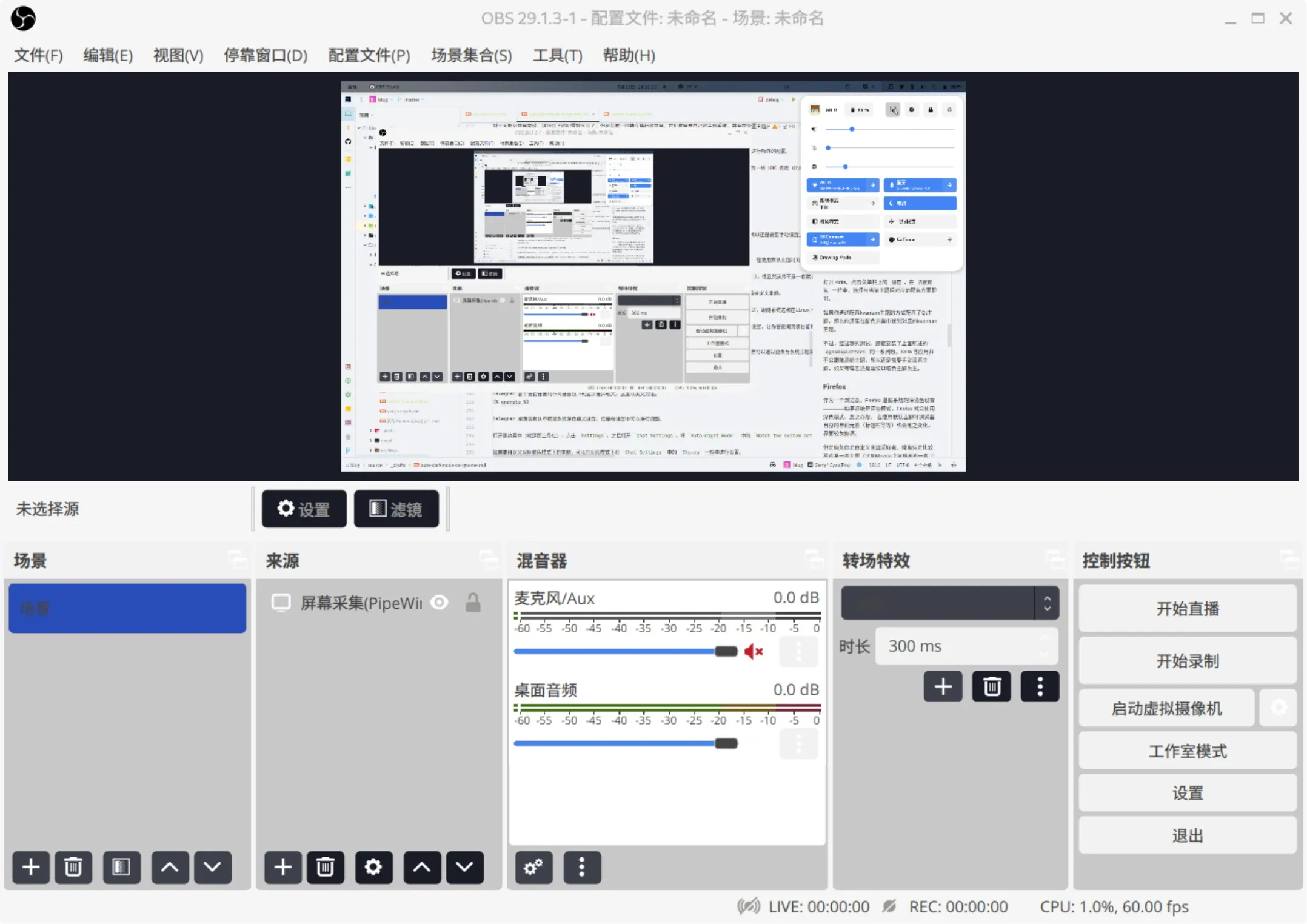
The practical fix is simple: switch OBS to the system theme instead.
Open File → Settings → General, then set Theme to System.
That both fixes the readability problems and makes OBS follow the system theme.
Telegram
Telegram Desktop does not follow the system dark-mode setting by default, but it can be configured to do so.
Open the side menu, go to Settings, then Chat Settings, and under Auto-night mode enable Match the system settings.
If you want different Telegram themes for light and dark modes, those can be selected separately from the Themes section within Chat Settings while each mode is active.
IntelliJ-based IDEs
Dark mode is the obvious choice for coding to many people, but not everyone wants the same theme all day. Some prefer a light theme during the day and a dark theme at night.
JetBrains IDEs can follow the system appearance on Windows and macOS, including separate themes for light and dark modes. Linux support has lagged behind despite the relevant APIs being available for quite a while.
There are still workable plugin-based options.
The first is Day And Night, which allows time-based theme switching inside the IDE. After enabling it, a Day And Night section appears in the IDE settings, where you can choose switch times and the corresponding themes.
Another plugin is Auto Dark Mode, which switches themes based on system settings. A recent update added support for version 2023.2.
Install it from the Marketplace, restart the IDE, and then adjust its options from the settings panel.
For GNOME 42+ users, xdg-desktop-portal-gnome needs to be installed first, and the plugin’s implement type should be set to XDG-Desktop. Otherwise, theme switching may not work. If other options fail—for example, if the IDE stays light while the system is dark—trying XDG-Desktop is also worthwhile.
Fcitx5
GNOME has native support for ibus, but the configuration described here focuses on Fcitx5.
Fcitx5 themes are easy to configure manually. Open the Fcitx5 Configuration application, go to Addons, then click the settings icon next to Classic User Interface to choose a theme.
If you want to customize the current theme, there is another settings button next to the theme itself.
That said, using an existing theme is much easier, and there are plenty available online. Once you find one, place it in:
~/.local/share/fcitx5/themes
Automatic switching is the harder part. Fcitx5 does not provide a built-in system-theme-following mode, but its configuration can be edited by script.
All user configuration files live in ~/.config/fcitx5. The Classic UI settings are stored in classicui.conf, which includes the active theme name under the Theme key:
...


# 主题


Theme=catppuccin-mocha


...
So the basic strategy is simple: replace the value of Theme whenever the desktop switches between light and dark.
A sample script can do this by reading the current theme with grep, replacing it with sed, and writing the result back to the same file:
#!/bin/bash


# Set the name of the config file


config_file="$HOME/.config/fcitx5/conf/classicui.conf"


# Get the old value of the setting


old_value=`grep -E "^Theme=" $config_file | cut -c 7-`


# Get the new value of the setting


new_value=$1


# Replace the old value with the new value


repl=`sed -i -e "s/$old_value/$new_value/" $config_file`


# Save the changes to the config file


echo "The value of setting_name has been changed to $new_value."
The script expects the theme name as an argument, and that theme name is simply the folder name inside ~/.local/share/fcitx5/themes.
For example, if the dark theme is catppuccino-mocha, then the sunset command in Night Theme Switcher would be:
sh ~/.local/bin/fcitx5-theme-switcher.sh catppuccino-mocha
One important detail for Night Theme Switcher users: if this script is called from inside another script, use absolute paths, otherwise the extension may fail to find the referenced file.
If you want a simpler option, the Input Method Panel extension can make the relevant KDE API work with GNOME, allowing the input method panel to follow the GNOME Shell theme. The tradeoff is that theme customization inside Fcitx5 becomes unavailable; it will follow the GNOME theme instead.
Other general approaches
Not every application fits the categories above, and not every application behaves sensibly.
If an app is not listed here, the most practical options are usually:
- check whether its own settings include an option to follow the system theme, usually under appearance or interface settings
- use a third-party theming tool if one exists
- contact the developer and ask for system theme integration
- if none of that works, use an alternative application or live with the mismatch
One more option worth mentioning
The method outlined above is only one way to solve the problem, and not necessarily the friendliest one. Other projects exist that try to bundle more of this into a cleaner workflow; Yin-Yang is one example that appears to be fairly complete.
Still, if what you want is a GNOME setup that switches between light and dark themes automatically, supports custom GTK themes, handles GTK4, gives Qt a path through Kvantum, and can be extended application by application, this approach does get there—just with a fair amount of manual wiring.