When deploying projects on servers in mainland China, pulling resources from overseas often turns into a headache. Code repositories, Docker images, model files, and similar assets may fail to connect at all, or crawl along due to unstable international routing.
A simple workaround is to put a reverse proxy in front of the target site. Using the free tier of Cloudflare Workers, you can set up a relay that helps with several common problems:
- Speeding up direct downloads
- Making GitHub repo cloning, GitHub Release downloads, and
wgetdownloads easier - Reaching sites that are otherwise blocked
- Pulling Docker images, downloading Hugging Face models, or accessing the OpenAI API
- Bypassing hotlink protection
- Accessing resources such as Pixiv image links that reject direct requests
- Enabling cross-origin access
- Working around CORS restrictions on third-party APIs
To deploy this setup, you need:
- A Cloudflare account on the free plan or above
- Any domain name that is not blocked
Why this works
There are a few different failure modes when accessing resources across borders.
If the origin server is blocked by the firewall, the connection cannot be established in the first place. Even when the origin is not blocked, cross-border routing may be poor enough that transfers are unreliable or painfully slow.
There is also a different class of problem: some sites enforce anti-hotlinking or strict CORS policies. In those cases, a browser request may be rejected because headers like Origin or Referer are not acceptable, or the browser may terminate the request because the response does not allow cross-origin access.
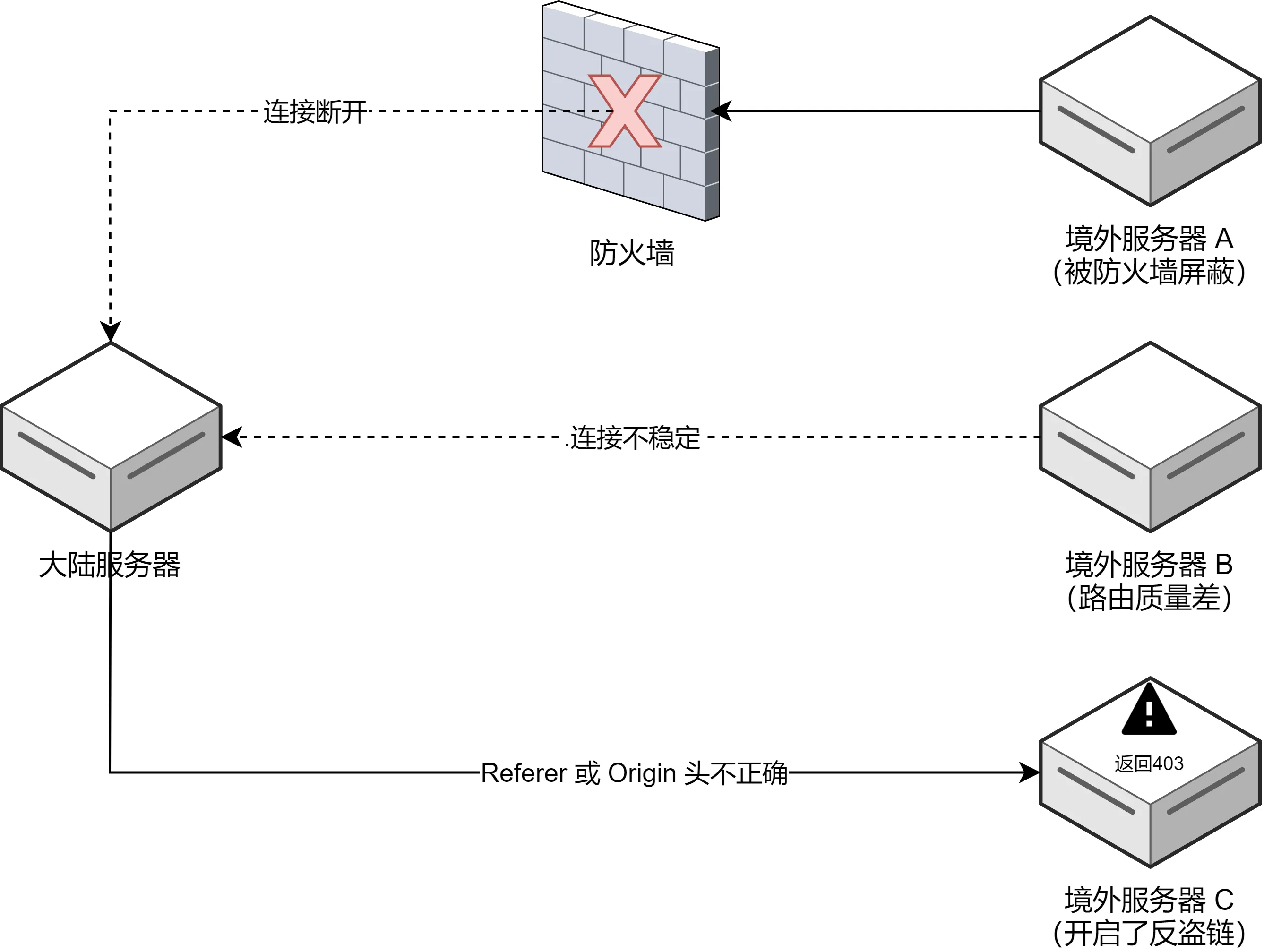
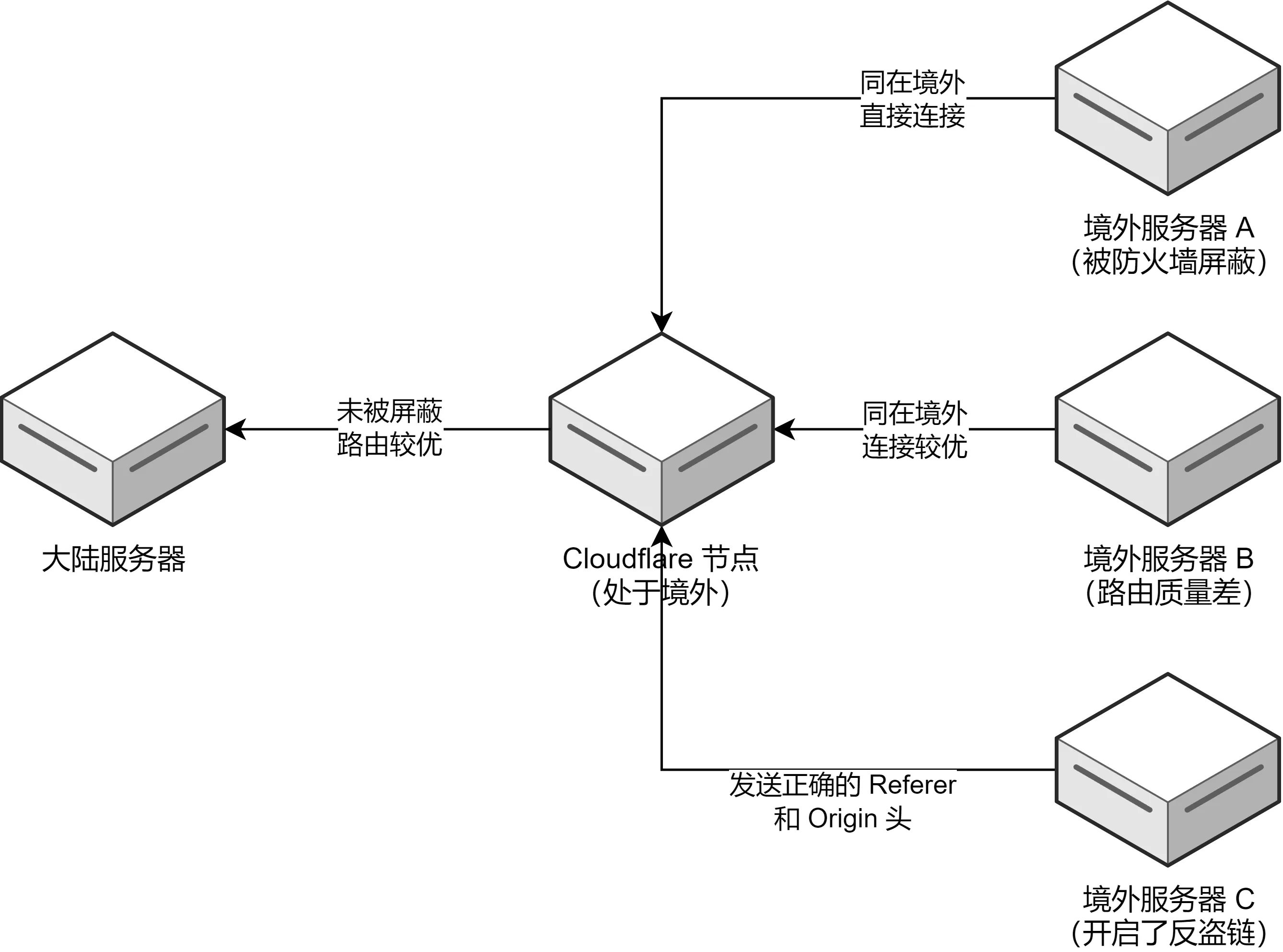
A reverse proxy helps by acting as an intermediate server between the client and the origin. For this role, the relay ideally needs to satisfy three conditions:
- It should not be blocked
- It should have decent international routing quality
- It should be able to modify request and response headers
Cloudflare Workers fits that role very well, so the overall structure looks like this:
Deploying the Worker
Create a Cloudflare account
Start by signing up for a Cloudflare account at https://dash.cloudflare.com/sign-up. If you already have one, just log in at https://dash.cloudflare.com/login.
Create and configure a Worker
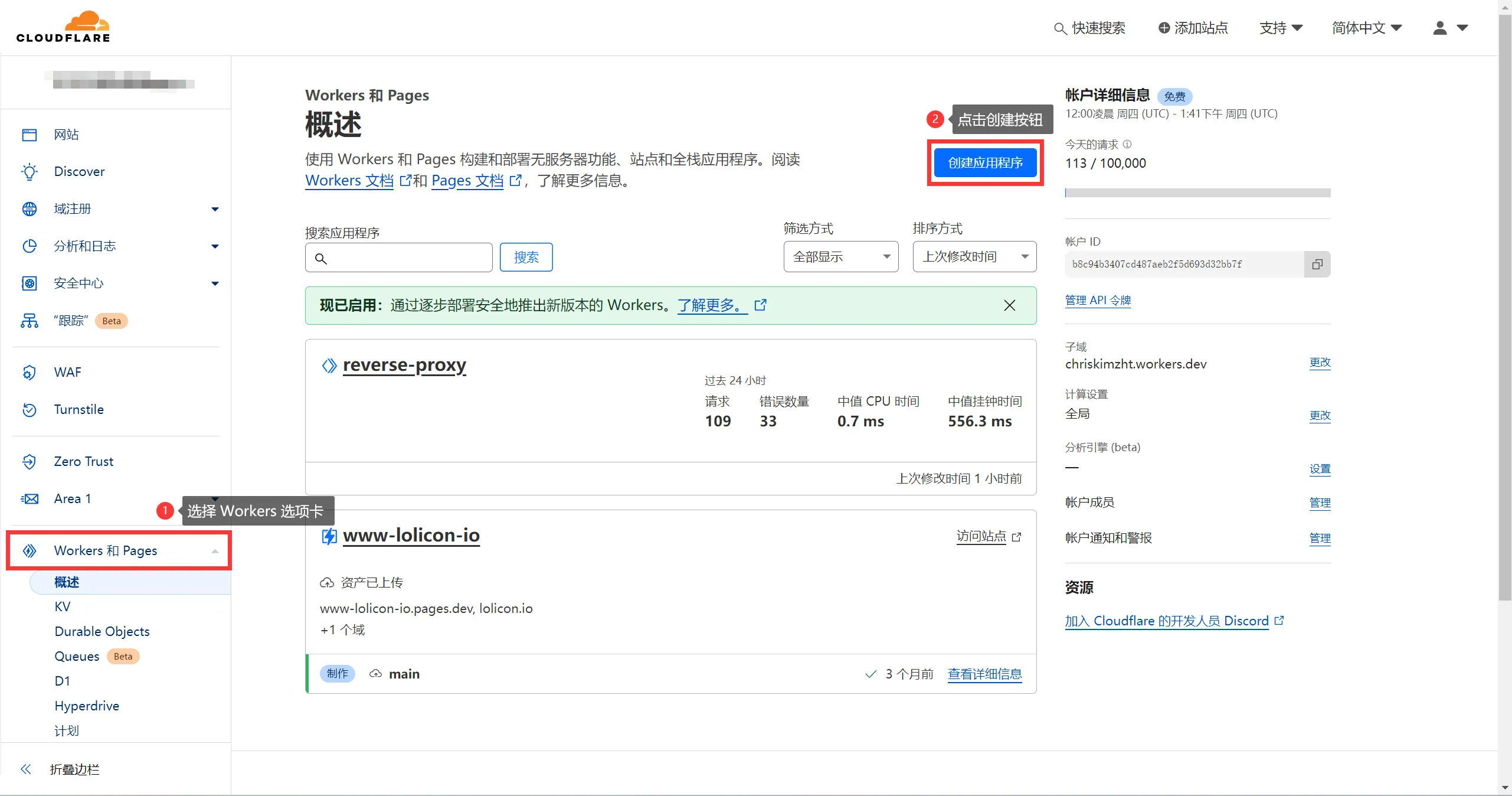
In the Cloudflare dashboard, open the Workers section from the left sidebar, then click Create application. On the next page, choose Create Worker, give it a name, and deploy it.
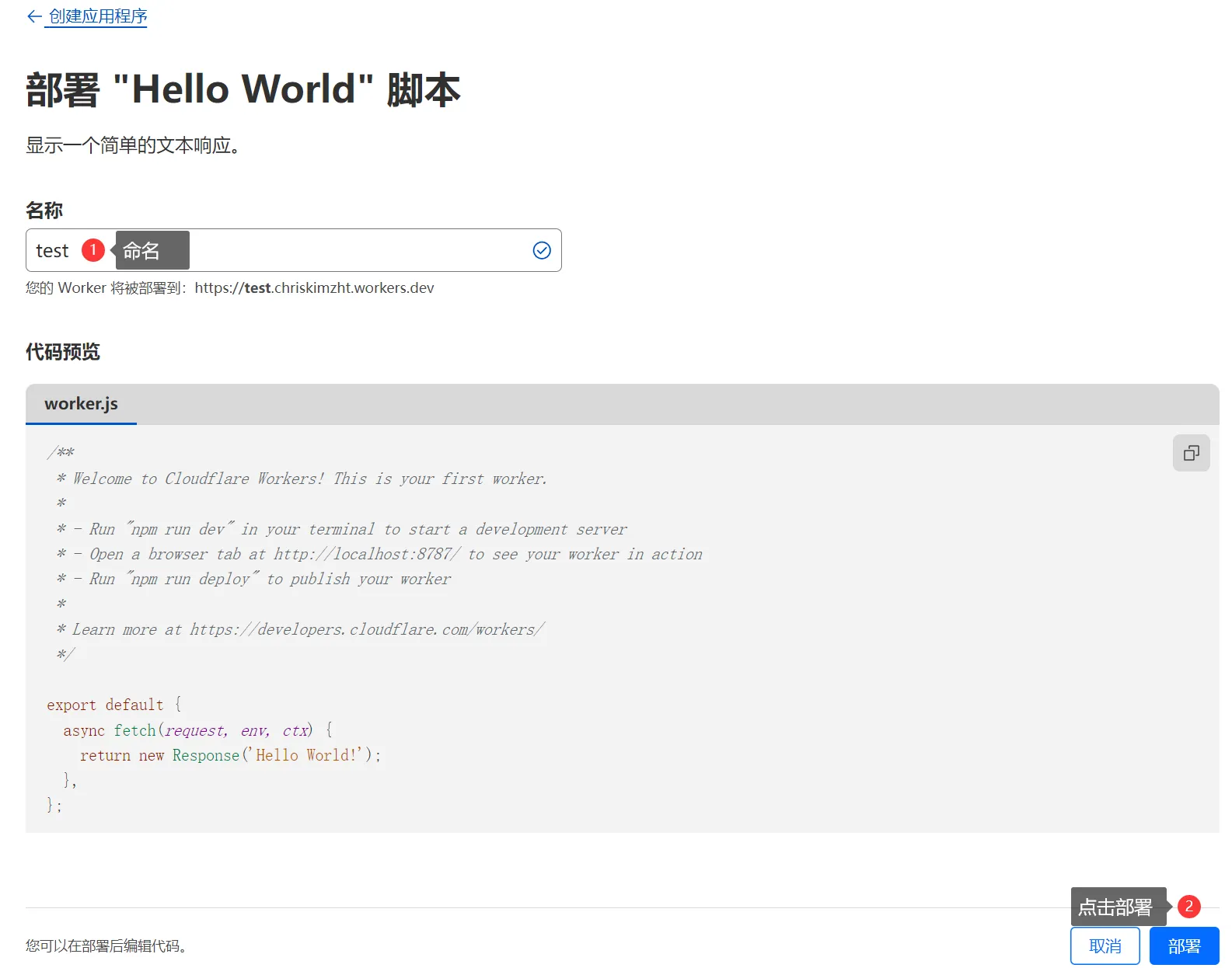
After the Worker is created, open Edit code and replace the default content in the editor with the following:
addEventListener('fetch', event => {
  event.respondWith(handleRequest(event.request))
})

const specialCases = [
  {
    pattern: /.*/,
    rules: {
      "Origin": "DELETE",
      "Referer": "DELETE"
    }
  }
]

function handleSpecialCases(request) {
  const url = new URL(request.url);

  for (const { pattern, rules } of specialCases) {
    if (pattern.test(url.hostname)) {
      console.log(rules)
      for (const [key, value] of Object.entries(rules)) {
        switch (value) {
          case "KEEP":
            break;
          case "DELETE":
            request.headers.delete(key);
            break;
          default:
            request.headers.set(key, value);
            break;
        }
      }
      break;
    }
  }
}

async function handleRequest(request) {
  const url = new URL(request.url);

  if (url.pathname === "/") {
    return new Response("Please enter the link after the /");
  }

  const actualUrlStr = url.pathname.replace("/", "") + url.search + url.hash;
  const actualUrl = new URL(actualUrlStr);

  const modifiedRequest = new Request(actualUrl, {
    headers: request.headers,
    method: request.method,
    body: request.body,
    redirect: 'follow'
  });

  handleSpecialCases(modifiedRequest);

  const response = await fetch(modifiedRequest);
  const modifiedResponse = new Response(response.body, response);
  modifiedResponse.headers.set('Access-Control-Allow-Origin', '*');
  return modifiedResponse;
}
Then click Deploy in the upper-right corner to publish the Worker.
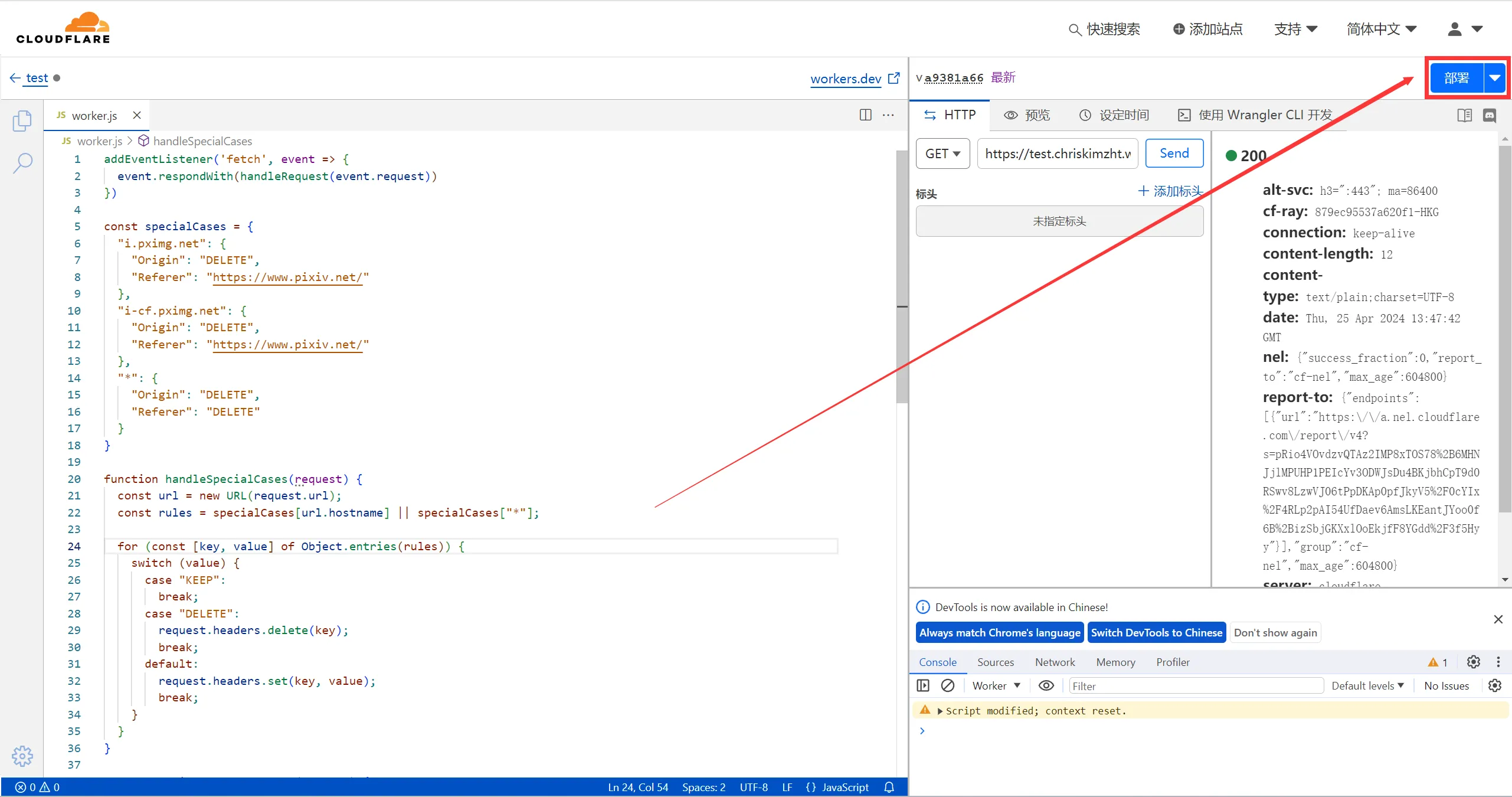
Test the Worker
Once deployment is complete, go to Settings -> Triggers -> Routes and find the Worker access URL.
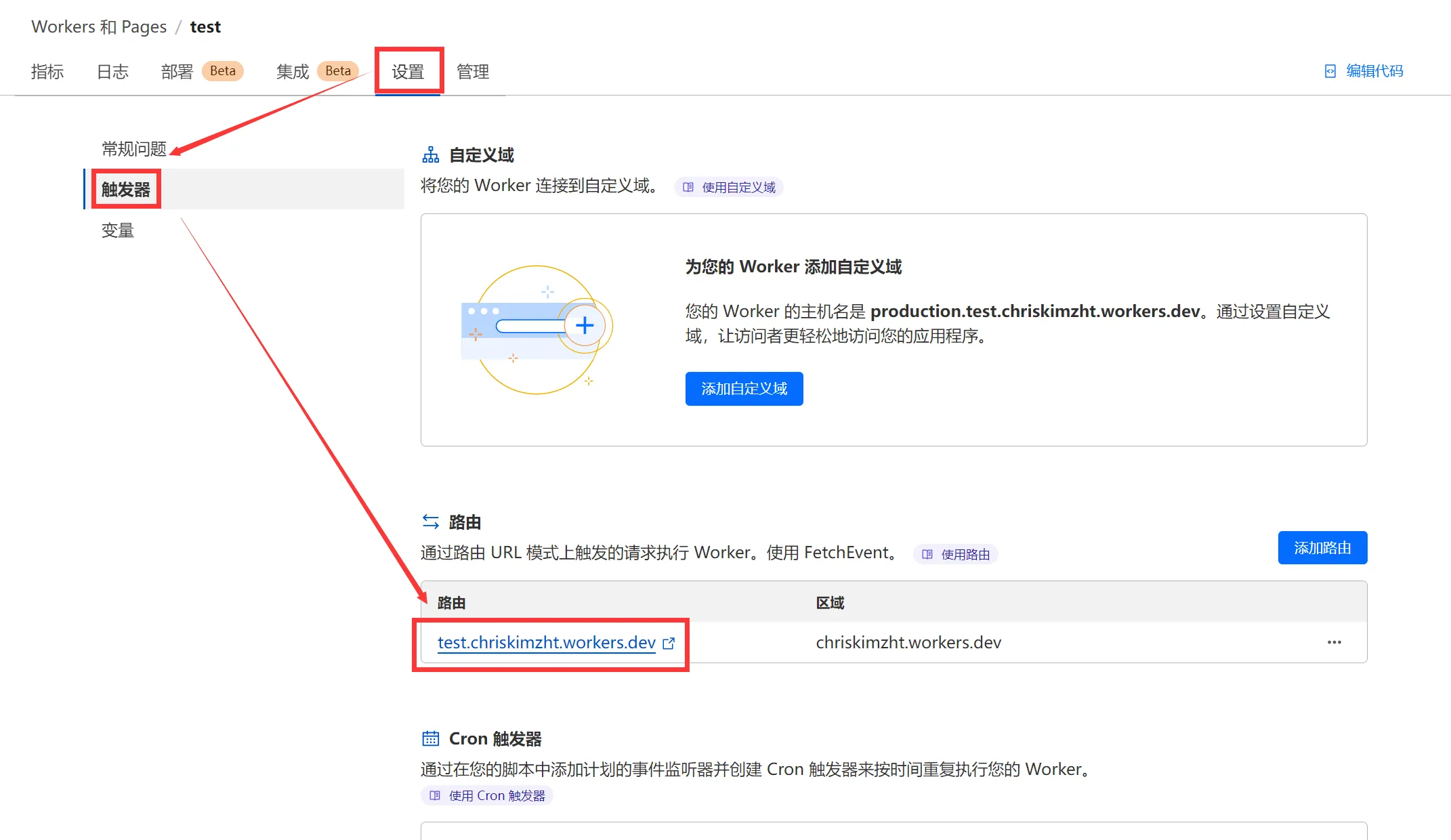
Opening that URL in a browser should return:
Please enter the link after the /
In practice, there is a good chance this page will not load directly from within mainland China. The reason is that the workers.dev domain is affected by SNI blocking, so it may be unreachable there. That is why a custom domain is needed.
Bind your own domain
First, move your domain's DNS hosting to Cloudflare. In the dashboard, go to Websites, click Add a site, and follow the instructions to switch your DNS to Cloudflare.
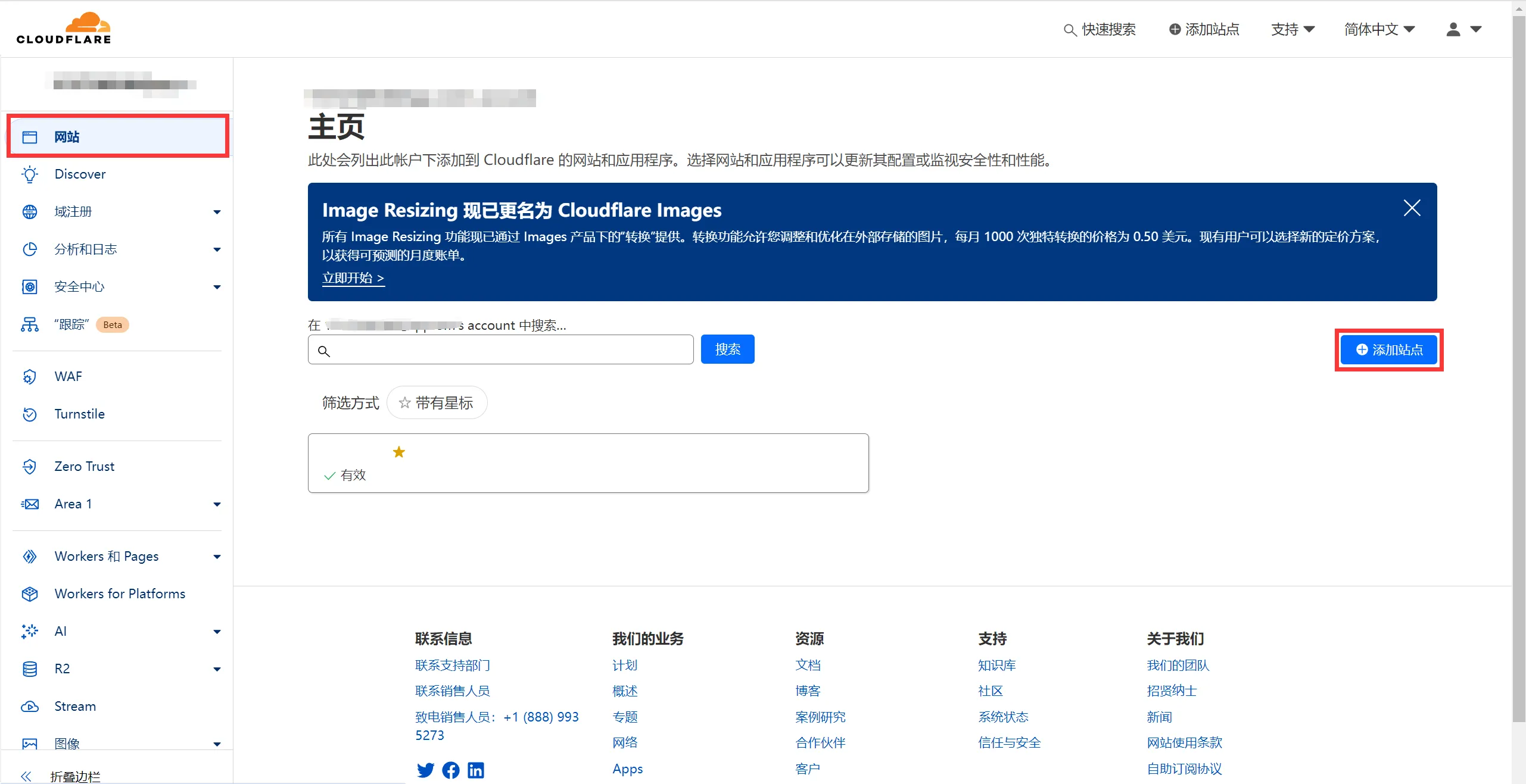
After the domain is added, return to the Worker page and attach a Custom Domain.
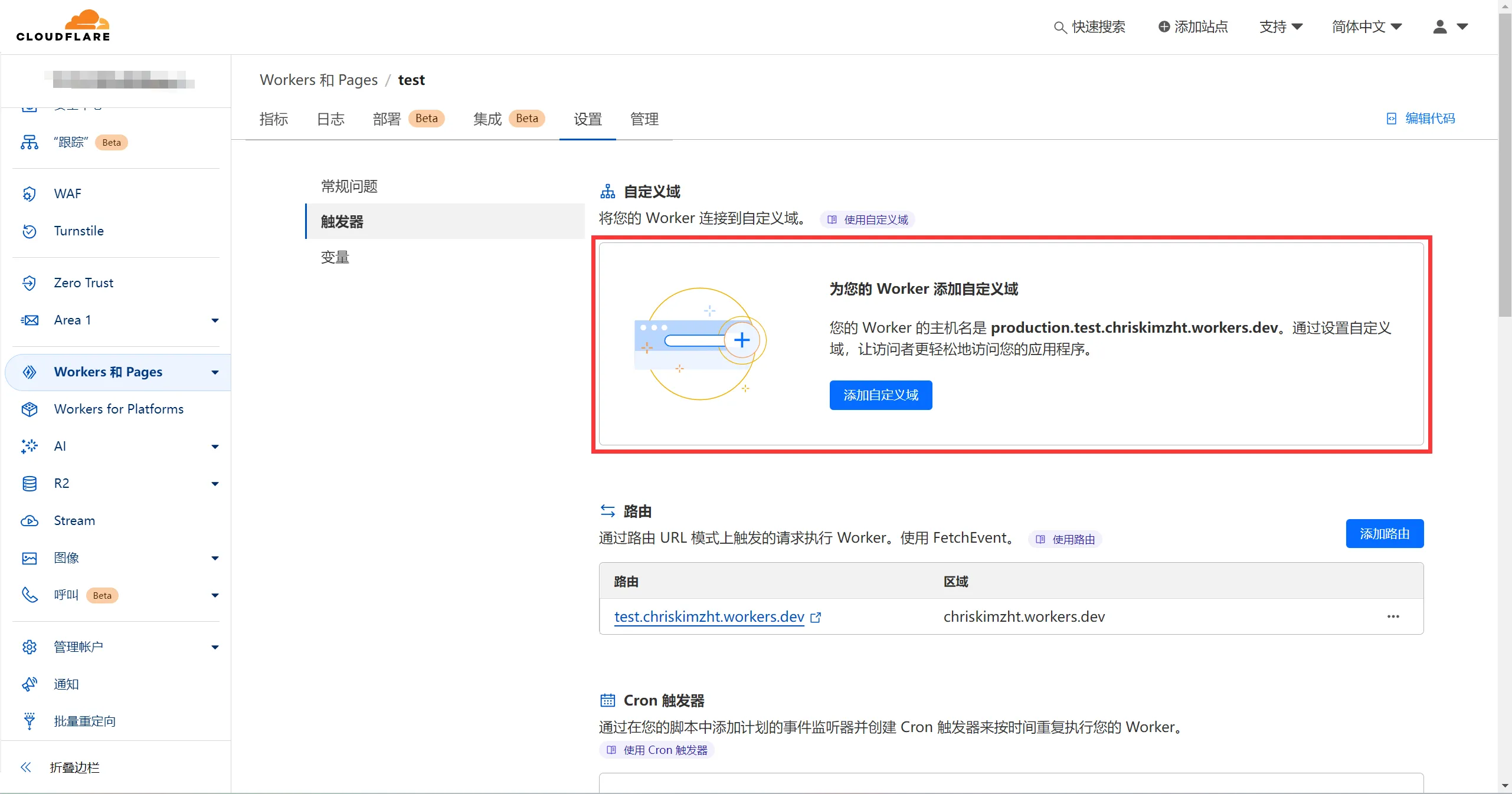
Cloudflare Workers are generally interfered with at the SNI level rather than fully blocked. Once you bind your own domain, access through that domain usually works. Cloudflare's routing quality is also fairly good, so direct use through the custom domain tends to perform well.
How to use it
The usage pattern is straightforward: append the URL you want to accelerate after the /.
For example:
- Original URL:
https://www.example.com/example.zip - Accelerated URL:
https://<your Worker domain>/https://www.example.com/example.zip
Handling anti-hotlinking rules
The code includes a specialCases section specifically for sites that validate Origin or Referer.
Each rule is written like this:
{
  pattern: <正则表达式>,
  rules: {
    "Origin": <Origin规则>,
    "Referer": <Referer规则>
  }
}
The values for Origin and Referer can be:
DELETE: remove the headerKEEP: leave it unchanged- A custom value: replace the header with that value
For example, Pixiv's image CDN requires the Referer to come from https://www.pixiv.net/. In that case, the rules can be adjusted like this:
const specialCases = [
  {
    pattern: /^.+\.pximg\.net$/,
    rules: {
      "Origin": "DELETE",
      "Referer": "https://www.pixiv.net/"
    }
  },
  {
    pattern: /.*/,
    rules: {
      "Origin": "DELETE",
      "Referer": "DELETE"
    }
  }
]
Only the first matching rule is applied. Once a hostname matches one rule successfully, the later rules are skipped.
Using it for Docker
warning Warning
This method appears to have stopped working recently. A different implementation is recommended instead: https://github.com/jonssonyan/cf-workers-proxy/blob/main/docker.js
The Docker Registry endpoint is https://registry.docker.com/, and it can be used with the same reverse proxy pattern. That means the mirrored address would be:
https://<your Worker domain>/https://registry.docker.com/
To configure Docker to use it as a registry mirror, edit /etc/docker/daemon.json. If the file does not exist, create it with the following content:
{
  "registry-mirrors": [
    "https://<你绑定的 Worker 域名>/https://registry.docker.com/"
  ]
}
After saving, restart Docker:
systemctl restart docker
What the results look like
One test used an Alibaba Cloud server in Shanghai to download the internlm2-chat-7b model from Hugging Face.
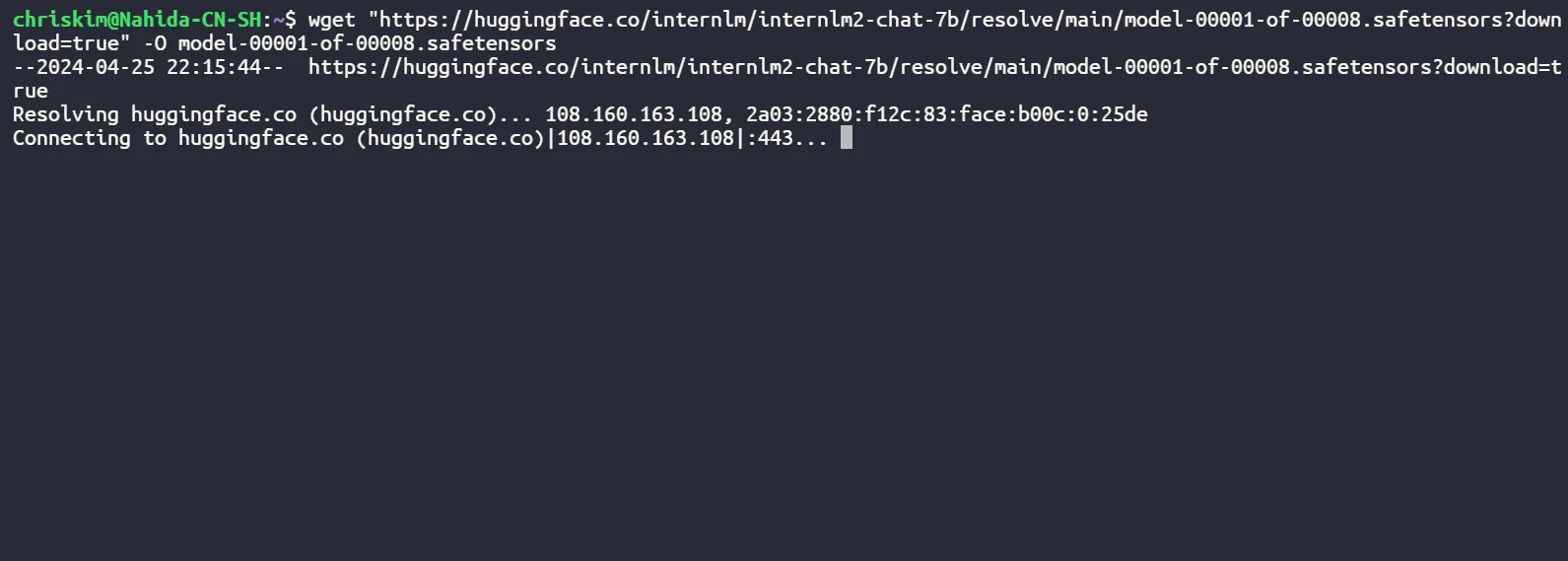
Direct connection: unable to establish a connection.
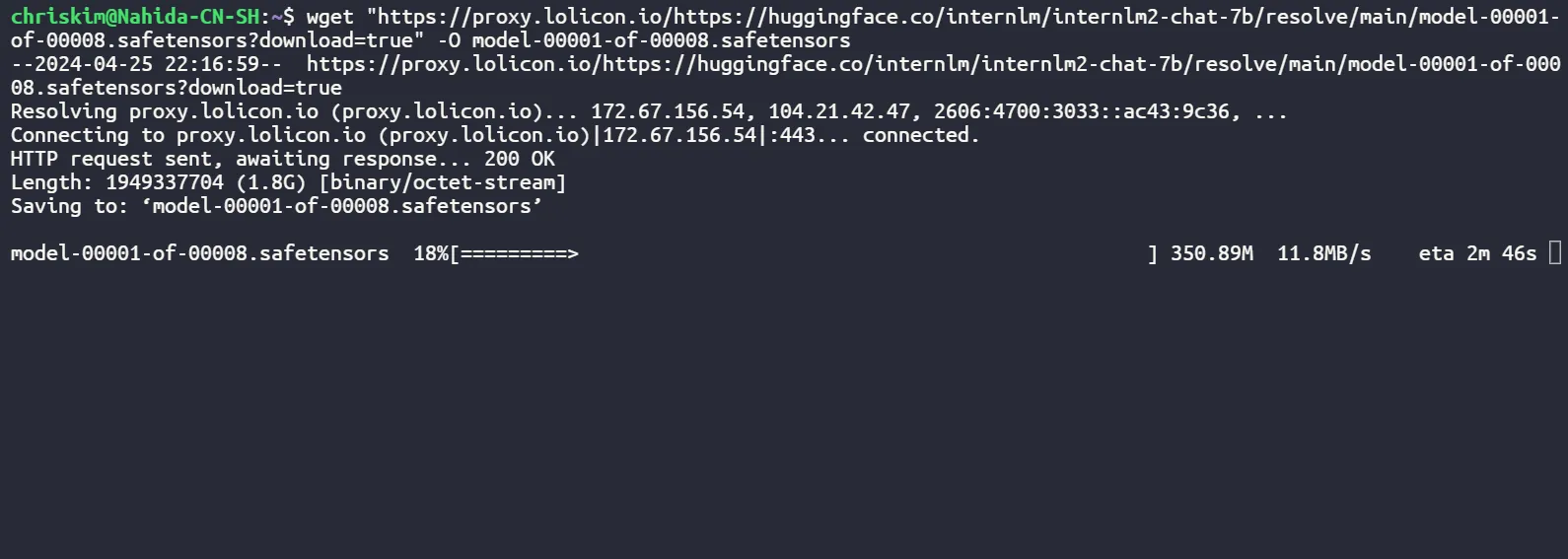
Through the proxy: the transfer saturated the server's 12 MB/s downstream limit.
Another test used a Yuyun server in Suqian to clone ChrisKimZHT/shell-emulator from GitHub.
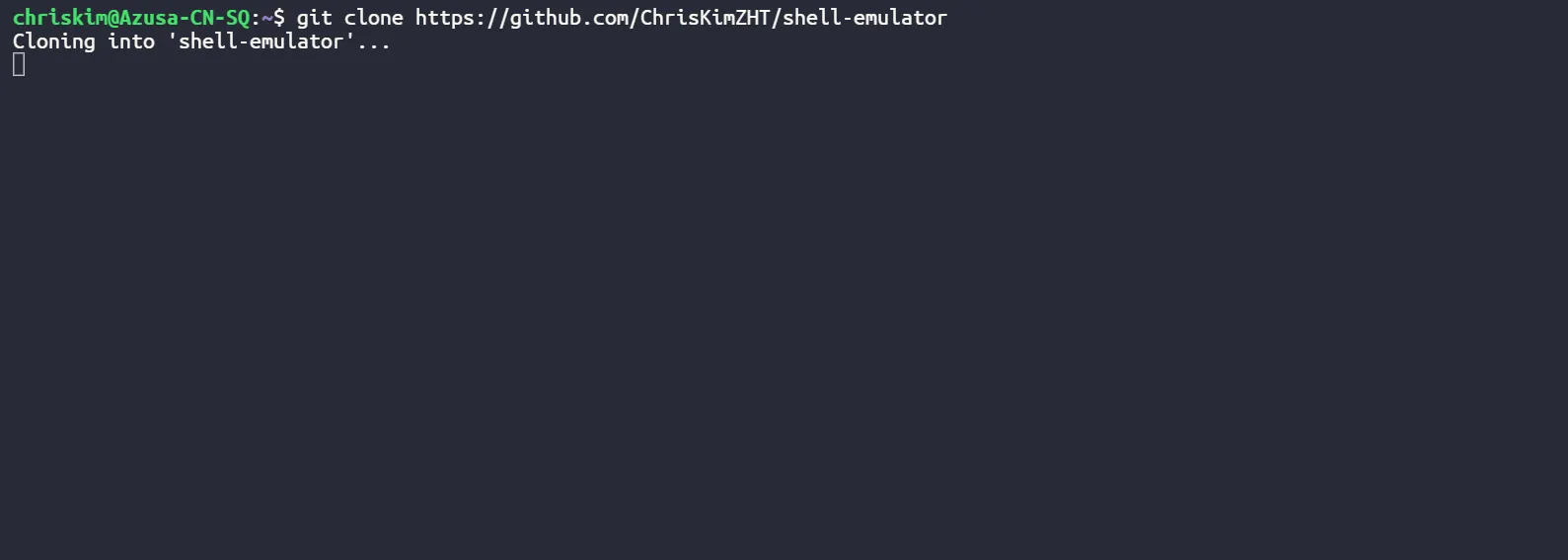
Direct connection: it simply stalled.
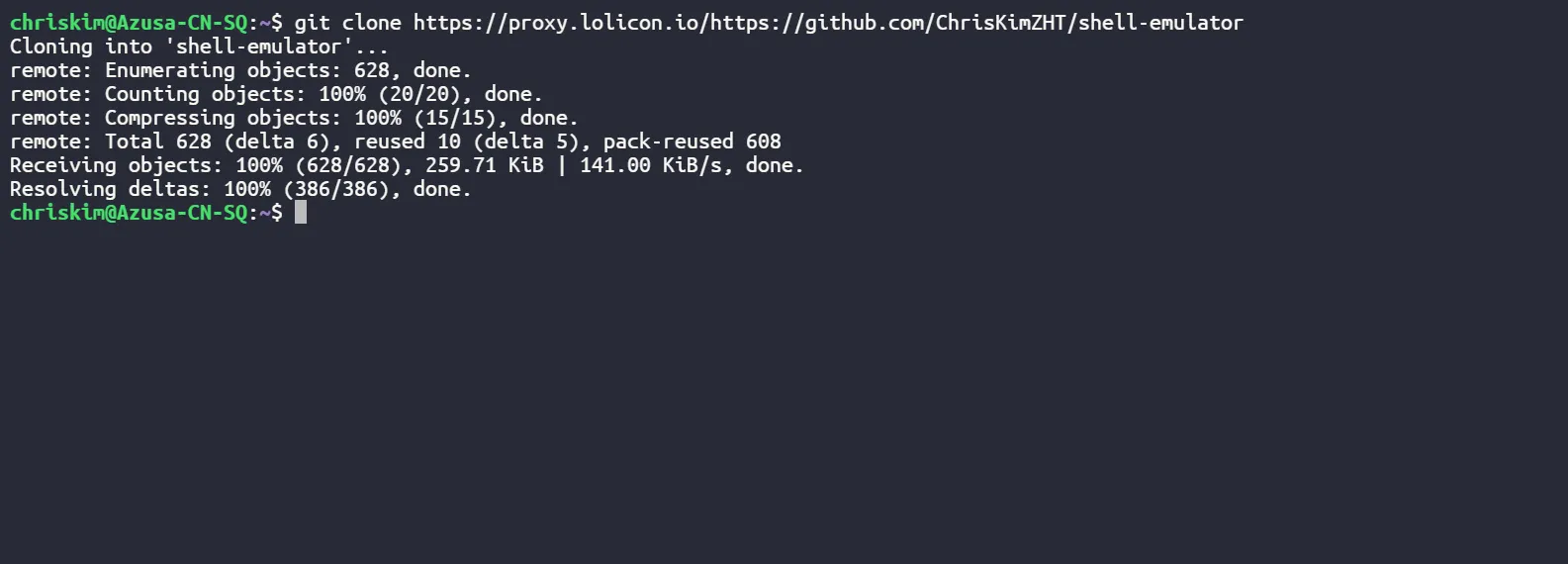
Through the proxy: cloning completed smoothly.
In longer-term use, this setup has worked reliably for months on many cloud servers. Connections from major cloud providers to Cloudflare tend to be stable, so using it on a server for tasks like cloning repositories is quite convenient. On local residential networks, though, the experience is much less consistent. Sometimes it speeds things up, and sometimes it is still sluggish, likely because commercial cloud routes are simply better.