After setting up a desktop-only workflow for creating new blog posts in Obsidian and publishing them through Jekyll, I tested the same process on mobile and ran into a few small issues. The fix was not complicated: I adjusted the script so it works better inside Obsidian’s own environment, especially when running through the QuickAdd plugin.
The script file is located at myob/assets/new_blog.js:
module.exports = async (params) => {
    const { app, quickAddApi } = params;

    // 设置你的 Obsidian 文件夹路径
    const obsidianFolder = '日记本/posts'; // 替换为实际路径

    // 输出调试信息
    console.log('Obsidian folder path:', obsidianFolder);

    let mdFiles;
    try {
        mdFiles = await app.vault.adapter.list(obsidianFolder);
        console.log('Files in folder:', mdFiles.files);
    } catch (error) {
        console.error('Error reading directory:', error);
        new Notice('Failed to read Obsidian folder. Please check the folder path.');
        return;
    }

    const markdownFiles = mdFiles.files.filter(file => file.endsWith('.md'));

    // 初始化最大 slug
    let maxSlug = 0;

    // 正则表达式匹配 slug
    const slugPattern = /slug:\s*"(\d+)"/;

    // 遍历文件以找到最大 slug
    for (const file of markdownFiles) {
        const content = await app.vault.adapter.read(file);
        const match = content.match(slugPattern);
        if (match) {
            maxSlug = Math.max(maxSlug, parseInt(match[1], 10));
        }
    }

    // 新文章的 slug 为最大 slug + 1
    const newSlug = maxSlug + 1;

    // 让用户输入标题
    const userTitle = await quickAddApi.inputPrompt("请输入标题");

    // 如果用户取消输入标题,则终止脚本执行
    if (!userTitle) {
        new Notice('操作已取消,未创建新笔记。');
        return;
    }

    const currentDate = new Date().toISOString().split('T')[0];

    // 设置 YAML 头部内容,确保 date 字段始终用双引号包裹
    const yamlContent = `---
categories:
-
tags:
-
date: "${new Date().toISOString().replace('T', ' ').split('.')[0]}"
slug: "${newSlug}"
title: "${userTitle}"
thumb:
backgrounds:
---
`;

    // 获取新笔记的文件名,以“yyyy-mm-dd-标题”的格式命名
    const fileName = `${currentDate}-${userTitle}.md`;

    // 组合文件路径,使用字符串拼接代替 path 模块
    const filePath = `${obsidianFolder}/${fileName}`;

    try {
        await app.vault.create(filePath, yamlContent + '\n# Your Note Content\n');
        new Notice(`New note created at: ${filePath}`);

        // 在新标签中打开新创建的笔记
        const createdFile = app.vault.getAbstractFileByPath(filePath);
        app.workspace.getLeaf(true).openFile(createdFile);
    } catch (error) {
        console.error('Error creating note:', error);
        new Notice('Failed to create note. Please check the folder path and permissions.');
    }
};
The main changes are fairly direct.
First, the path module is no longer used. Instead, the file path is assembled with ordinary string concatenation. This fits the Obsidian runtime better and avoids problems that can appear outside a normal desktop Node.js environment.
Second, the generated YAML front matter is formatted more carefully. In particular, the date field is always wrapped in double quotes, so Obsidian can recognize the metadata correctly.
With these adjustments, the script should run smoothly from Obsidian’s QuickAdd plugin and create a new Markdown note with a proper YAML header.
Leaving blog drafts buried in a folder is not ideal either. If enough time passes, it becomes easy to forget what has already been written. To make the latest blog posts visible inside Obsidian, I used dataviewjs to display the most recent post status.
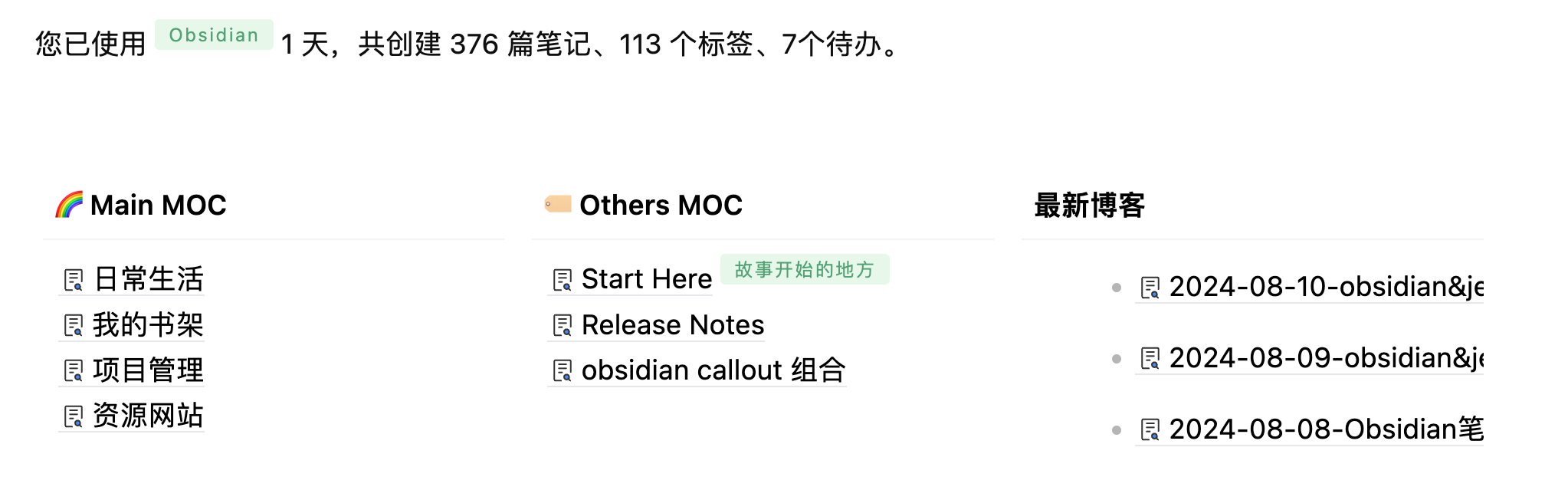
This part requires the Dataview plugin. The code is as follows:
const folderPath = "日记本/posts"; // 替换为你的文件夹路径

let pages = dv.pages().filter(p => p.file.path.startsWith(folderPath)) // 获取指定文件夹下的文件
    .filter(p => p.file.name.match(/^\d{4}-\d{2}-\d{2}/)) // 过滤出符合日期格式的文件
    .sort(p => p.file.name.substring(0, 10), 'desc') // 按文件名中的日期排序
    .limit(3);

for (let page of pages) {
    let filePath = page.file.path.replace(/ /g, '%20'); // 替换空格为 %20
    dv.paragraph(`- [${page.file.name}](${filePath})`);
}
This snippet looks for files under 日记本/posts, keeps only files whose names start with a date in the yyyy-mm-dd format, sorts them by that date in descending order, and then shows the latest three entries as clickable links.
There is one small bug worth noting: a dataviewjs code block should not be placed inside a callout code block. Doing so can trigger a plugin conflict, which is a bit unfortunate.