NFS, short for Network File System, is a network-based file sharing mechanism supported on Linux and FreeBSD systems. It allows machines on the same TCP/IP network to share directories and files so that a client can read and write remote data almost as if it were accessing a local filesystem.
In practical Linux administration, NFS is commonly used for data sharing between Linux servers.
NFS basics
The core packages involved are:
nfs-utilsrpcbind
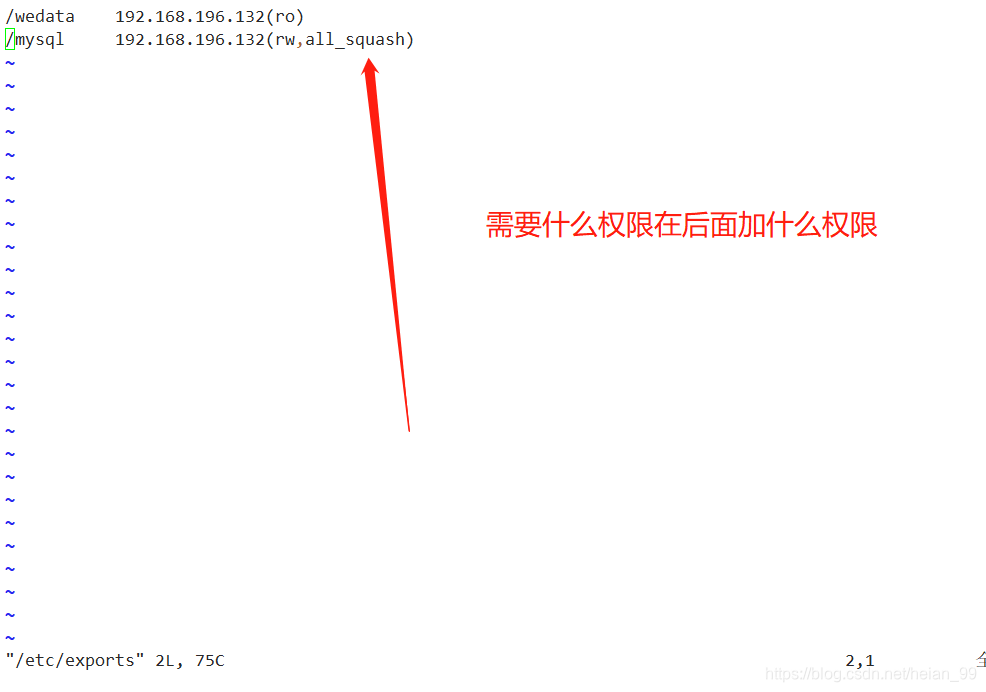
The export configuration file is:
/etc/exports
A typical entry in /etc/exports follows this format:
directory client_address(options)
Examples of client address definitions:
- Single host IP:
192.168.196.131 - Network segment:
192.168.196.0/24
Common permission and behavior options include:
ro— read-onlyrw— read/writesync— synchronous writeasync— asynchronous write
User mapping options:
all_squash— files uploaded by any client user are mapped tonfsnobodyroot_squash— files uploaded by the client’srootuser are mapped tonfsnobodyno_root_squash— files uploaded by the client’srootuser remain owned byrootanonuid=<number>anongid=<number>
Example: share /wedata from one Linux host
In this example, the Linux server uses 192.168.196.131, and the directory /wedata is shared so that 192.168.196.132 can mount it in read-only mode.
1. Install the required software
[root@wei ~]# yum -y install rpcbind nfs-utils
2. Create the shared directory and test files
[root@wei ~]# mkdir /wedata
[root@wei ~]# touch /wedata/{1..10}.html
3. Edit /etc/exports
[root@wei ~]# vim /etc/exports
Add the following line:
/wedata 192.168.196.132(ro)
This means /wedata is exported to 192.168.196.132 with read-only access.
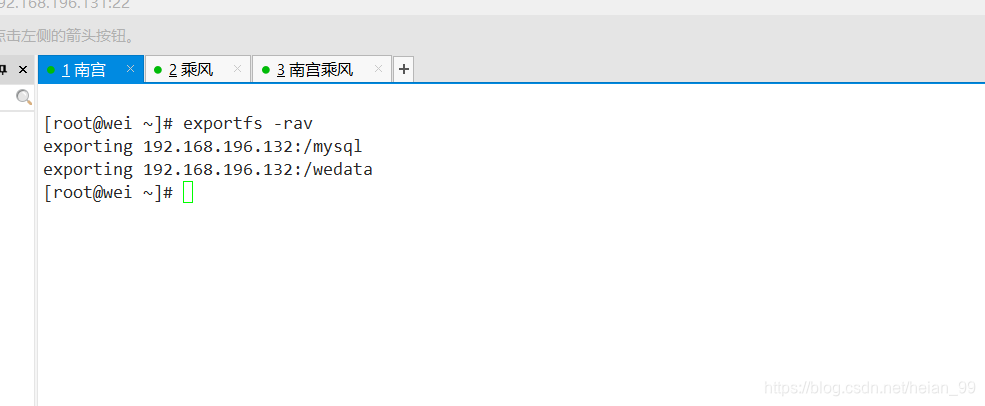
4. Restart the related services
[root@wei ~]# systemctl restart rpcbind
[root@wei ~]# systemctl restart nfs-server
There is also another command sequence shown below:
5. Verify the exported directory locally
[root@wei ~]# showmount -e localhost
Export list for localhost:
/wedata 192.168.196.132
If /wedata appears in the export list, the NFS share is being published correctly.
Mounting the NFS share on the client
The client also needs the required NFS-related software installed.
Then mount the shared directory:
[root@zhang ~]# mount 192.168.196.131:/wedata /web/
[root@zhang ~]# ls /web/
10.html 1.html 2.html 3.html 4.html 5.html 6.html 7.html 8.html 9.html
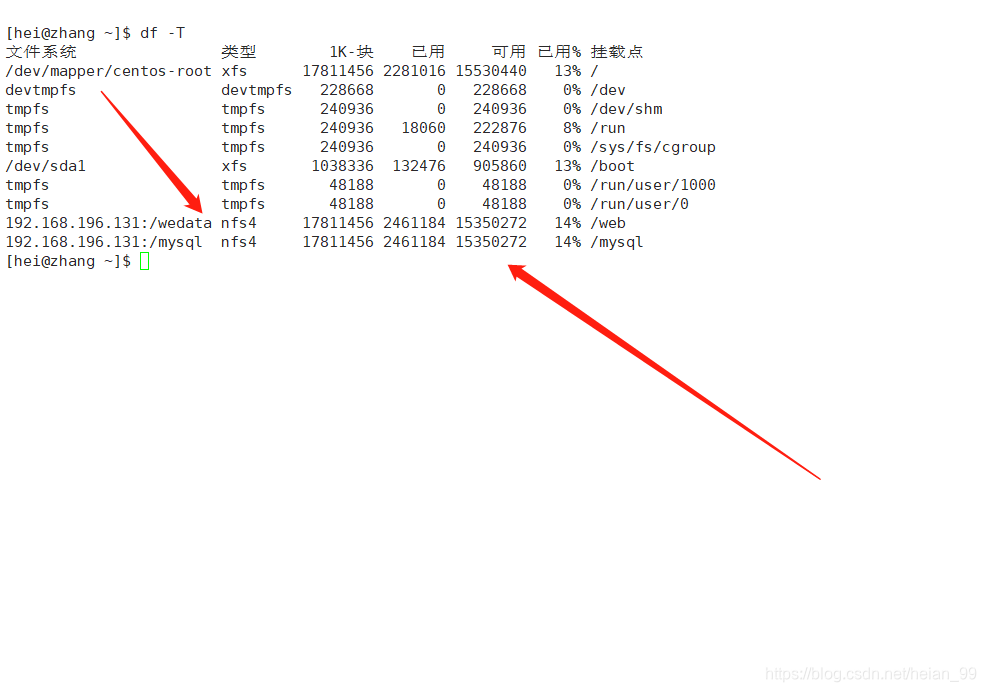
At this point, the client can access the files exported from the server through /web/.
Mount the share automatically at boot
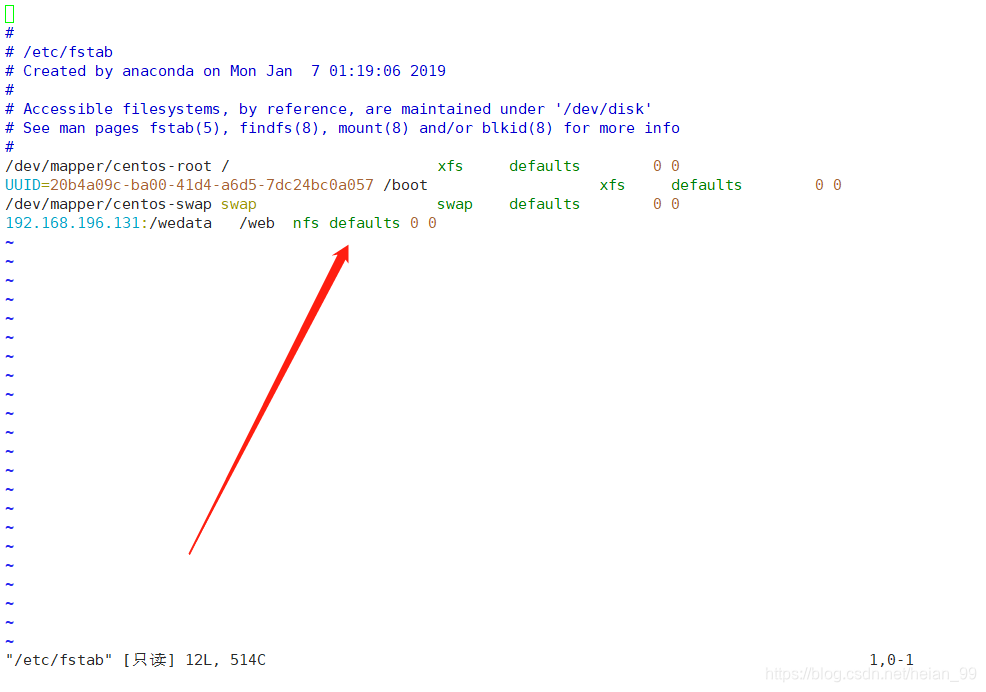
To make the NFS mount persistent after reboot, edit /etc/fstab on the client:
[root@zhang ~]# vim /etc/fstab
Add this entry:
192.168.196.131:/wedata /web nfs defaults 0 0
After that, the system can mount the NFS share automatically during startup.
About permission adjustments
NFS permission handling depends on the actual use case. Options such as root_squash, no_root_squash, all_squash, anonuid, and anongid can be adjusted as needed.