Before switching
I had been using the Car+ connectivity setup for a while, but the experience never felt stable. The biggest issues were phone overheating and obvious frame drops on the in-car display, both of which got annoying pretty quickly. Since the factory system already supports Android Auto in addition to Apple CarPlay, I decided to give it a real try instead of sticking with Car+.
I had never thought very highly of Google’s own in-car system, but after looking through some community workarounds, it seemed worth abandoning the old setup and rebuilding things around Android Auto.
What Android Auto actually needs
Android Auto is Google’s replacement-style phone projection platform for car systems, but it does place some requirements on the phone. The device needs built-in GAPPS support, meaning the standard Google app suite. In most cases, anything from Android 5.0 onward already includes that, unless the phone is running something closer to AOSP, in which case GAPPS has to be flashed separately. If needed, the right package can be selected from the Open GAPPS site based on the device’s hardware and software.
On many phones, the Android Auto entry is located under Settings - Connection & sharing - Android Auto. If it is missing, you may need to expose it through other methods, such as a shortcut-creation app. I won’t go into the step-by-step process for that here.
Once the car is powered on, connect the phone either with a cable or through wireless Bluetooth pairing, then choose Android Auto from the car’s menu and wait for the connection process to finish. For Android Auto to work correctly, the phone must also have Google Map, Google Search, and Google TTS installed. These are usually included with GAPPS, but without them the system will not function normally.
In theory, that should be enough. In practice, using Android Auto in mainland China is still awkward. Even if the Google framework is present and even if you use workarounds to access Google services, the mapping experience is still extremely weak in local conditions, to the point of being basically unusable. So if you want access to the Android Auto ecosystem at all, you end up needing extra tricks.
The problem with domestic ROMs
Many Chinese Android ROMs still keep the Google framework, but because of past customizations and various system-level modifications, some parameters are not updated properly. That can lead to surprisingly odd failures.
I’m currently using ColorOS 14. After installing Android Auto from Google Play, the car connection would always time out. Then the phone would pop up USB options, which made me suspect the issue was not the cable itself but broken Android Auto parameters.
Digging around, I found a large number of incorrect configuration items in /data/data/com.google.android.gms/databases/phenotype.db, along with related files under /data/data/com.google.android.projection.gearhead/files/phenotype/shared/com.google.android.projection.gearhead.pb and permissions definitions in /system/product/etc/permissions/com.google.android.projection.gearhead.xml. Properly correcting all of that would take a longer repair process, so I won’t describe the full fix here. But after making a few targeted changes, Android Auto did start working normally.
AA4MG: the easier route
If you want Android Auto to work reliably on a domestic ROM, the usual path is unlocking the bootloader, getting a Magisk root environment, and installing LSPosed. If you do not want root, you can also move to Aosp + GAPPS, but then you lose some flexibility for projecting domestic apps onto the car screen.
I originally considered building a module to fix these problems myself, but while looking through templates on Github, I found that someone had already made something very similar. No need to reinvent it.
That module is AA4MG, short for Android Auto 4 MicroG. It allows Android Auto to run on devices without GAPPS, and it can also be used as a Magisk module on systems that already support Android Auto.
For module details, installation notes, and documentation, the relevant information is available on Github under AA4MG.
After flashing the Magisk module, enable the XLauncher Unlocked module in LSPosed, then reboot the phone.
Projecting any app to the car display
Once the basic Android Auto environment is working, there are currently two practical ways to project arbitrary apps onto the car screen. One is through Screen2Auto, and the other is through the AADisplay module for LSPosed. Both methods require root.
Screen2Auto
Screen2Auto works across basically any Android version. Its method is straightforward: it transmits the phone’s screen directly to the car display. Because of that, the phone has to stay awake and keep the screen workflow active the whole time.
The good part is that setup is relatively simple. You just install the app and follow its configuration flow. There are already tutorials for it, so I won’t repeat the full installation steps here.
If you go this route, it makes more sense to dedicate a secondary phone to the car. It is not an ideal setup for a main device that you rely on every day.
AADisplay
AADisplay is an LSPosed module. Based on the developer’s description, it uses Android’s virtual display capability, which means the phone can keep projecting to the car display even while locked or while handling other tasks. That is a much cleaner approach than full screen mirroring.
The catch is that this depends on features available from Android 13 onward. If the device is running anything older, then Screen2Auto is still the realistic option.
What the end result feels like
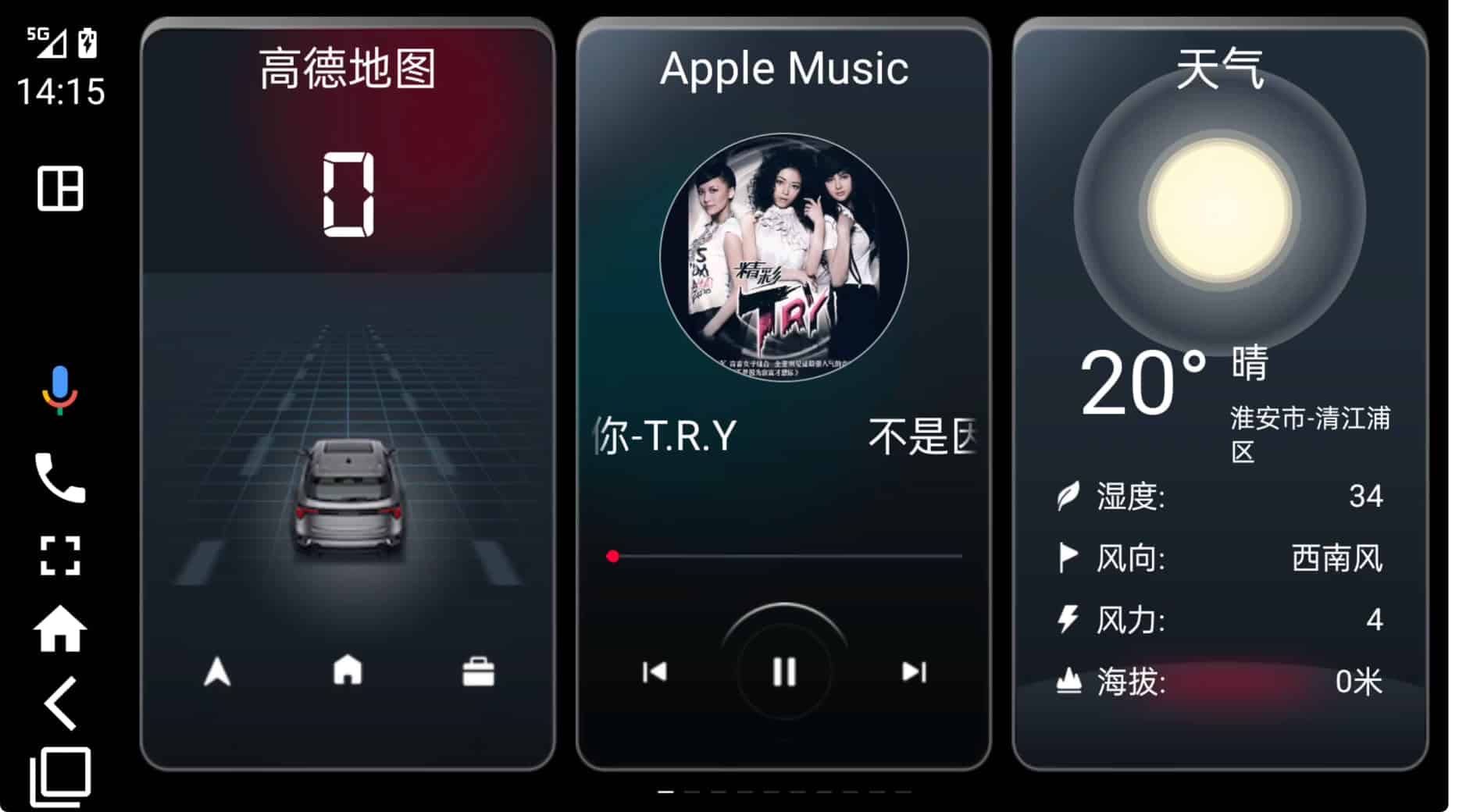
After enabling arbitrary app projection, I installed Dudu Launcher and the in-car version of Amap. In actual driving use, the experience was genuinely good. The interaction felt smooth, and I did not run into stutter during operation. For Android, this is probably the closest thing I’ve found so far to a reasonably complete solution.
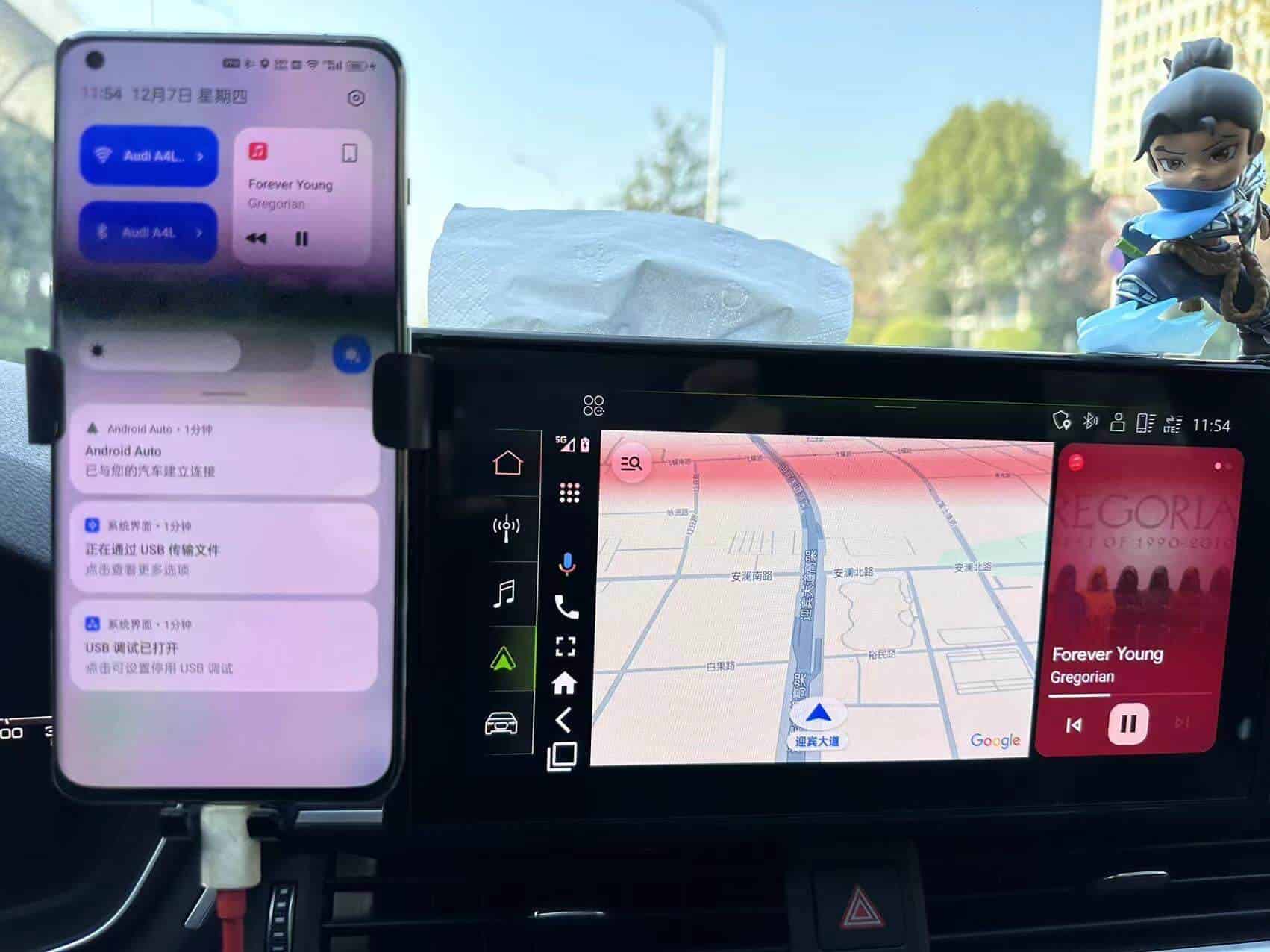
Later, after switching from magisk to kernelsu, I found that things stopped working properly again. After some troubleshooting, two points turned out to matter:
- First,
Shell(com.android.shell)must be grantedrootaccess.AADisplayneeds to executeshellcommands, and without that permission the app will crash. - If you use a
hidden app listmodule, make sureAADisplayitself is not hidden, or it will fail to launch.