I kept seeing people rave about Obsidian over the past week, and it finally clicked why: the iOS version is out, and it supports almost everything. After going through a bunch of guides and the official docs, I realized this app is a lot deeper than it first looks.
A theme and UI setup worth keeping
This is the visual stack I ended up liking:
- Primary: the theme I use myself.
- Minimal Theme: the base theme.
- Minimal Theme Settings: the companion settings panel for customizing fonts and more.
- Hide: for selectively hiding parts of the interface.
- File Explorer Count: shows file counts on folders in the sidebar.
- Sliding Panes: enables horizontally stacked panes.
- Ozan’s Image in Editor: lets images, iframes, and PDFs display directly in the editor view.
- Supercharged Links: improves the look of internal links.
//Ozan's Image in Editor 语法
![[ myimage.png | #x-small ]] //#small #x-small #xx-small
 //Width x Height
 //Width
A file-style management combo
This setup is for creating a note with the same name as a folder, or the other way around. A very file-manager habit, admittedly.
- Folder Note: hold
Ctrland click a folder to create an.mdfile. - Note Folder Autorename: create a same-named folder for an
.mdnote.
Configuration step 1: in Folder Note, make sure Auto Rename is turned off.
Note File Method: "Folder Name Inside"
Auto Rename: OFF
Configuration step 2: assign a shortcut to the Note Folder Autorename command Make this note a folder note.


File-style management
Configuration step 3: in Settings → Files & Links, set the default location for new attachments to In subfolder under current folder. That way, if you paste an image directly after copying it, it gets stored inside the current subfolder.
Better outlining
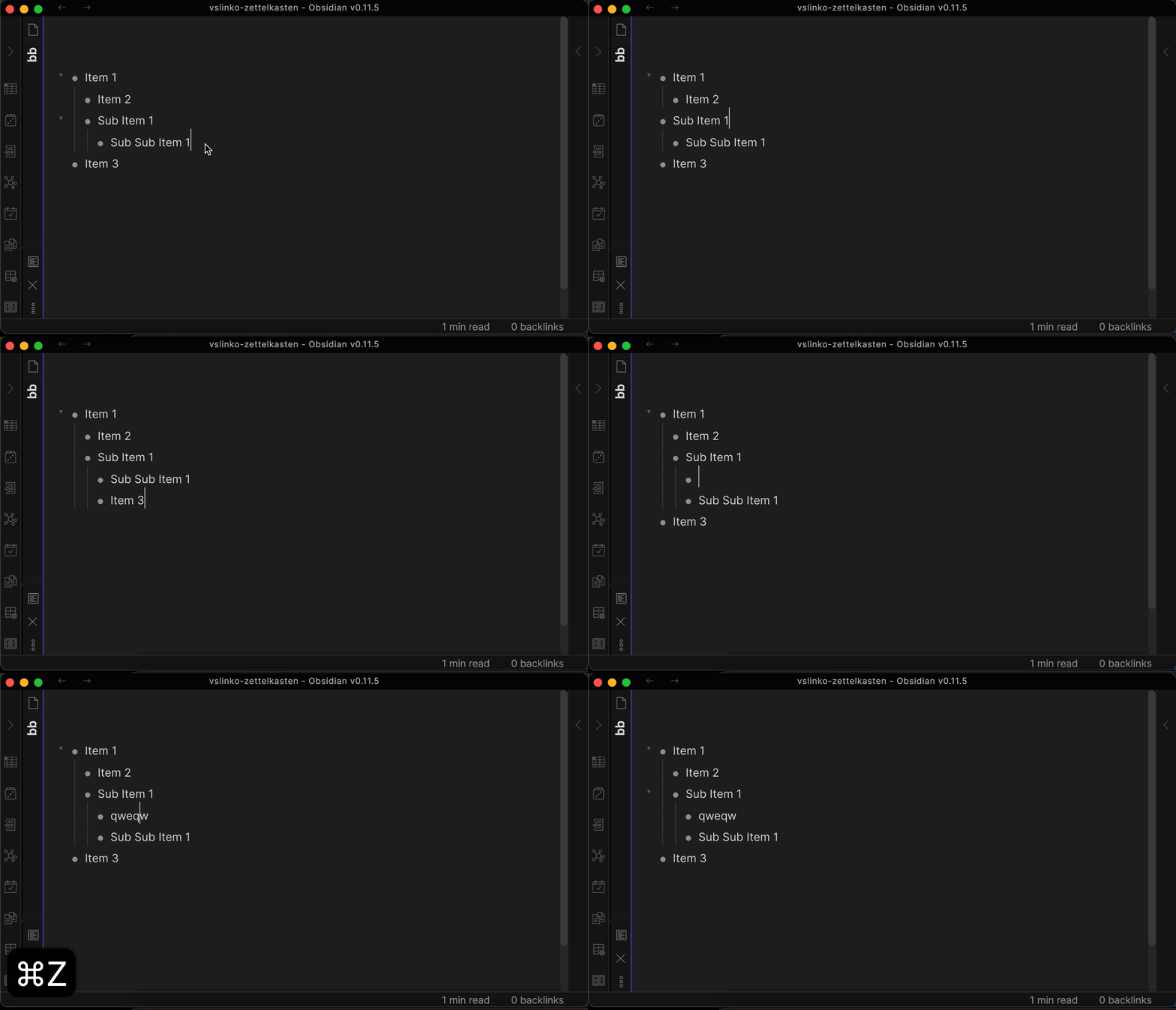
For anyone who likes working in outlines, these two help a lot:
- Outliner: gives you fast indentation and a much smoother outliner workflow.
- Zoom: lets you enter and edit at the node level.
More plugins that genuinely improve things
There are quite a few extras that make Obsidian feel much more complete:
- Editor Syntax Highlight: syntax highlighting for code blocks.
- Recent Files: adds a recent files view.
- Kanban: a kanban board plugin.
- Calendar: close to essential if you use the built-in daily notes feature.
- Word Splitting for Simplified Chinese in Edit Mode: improves Chinese word splitting, especially for double-click selection in edit mode.
- Remember cursor position: remembers where the cursor was.
- Templater: a much more powerful version of the built-in template system.
- Media extended: video preview with support for anchors.
- Dataview: write query code in edit mode and view summarized data in preview mode.
- Text expand: write query code, then insert the result directly into the current note.
- Tag Wrangler Plugin: rename a tag once and every matching tag across the vault updates automatically.
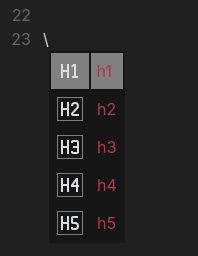
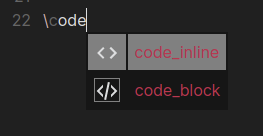
Markdown Formatting Assistant
- Markdown Formatting Assistant: adds a panel with formatting options and symbols you can click to insert, or search via the
\backslash trigger.
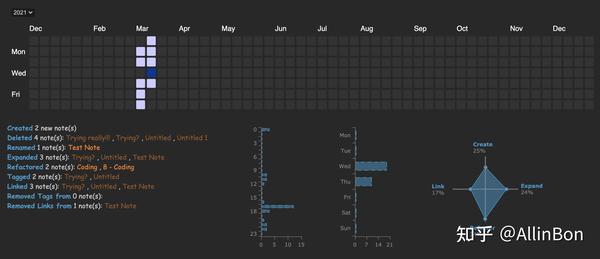
Obsidian Commits
- Obsidian Commits: generates a heatmap and summary stats so you can review annotation updates and note-writing activity over time.
Web clipping
- MarkDownload for Chrome: saves an entire web page as Markdown.
A practical little iOS automation
Record different training sessions at any time and update the running summary automatically.


A one-tap iOS Shortcut can append a tag to today’s daily note.
Two steps:
- Install the Advanced Obsidian URI plugin.
- Add the Shortcut shown above in iOS.
obsidian://advanced-uri?vault=&daily=true&mode=append&data=%23%E4%B9%A6%E6%B3%95
That URL appends #书法 to the current daily note, such as 2021-08-06.md, in one tap. In the URL, %23%E4%B9%A6%E6%B3%95 == #书法, because the data parameter needs URL encoding. The plugin page documents the rest of the parameters.
Checking progress at a glance

How many sessions are done, and how many are left? Open 坑娃.md in preview mode and it is all right there.
This is also a two-step setup:
- Install the Obsidian Dataview plugin.
- Add two code blocks to a page such as
坑娃.md: one to count sessions, and one to generate an index table.
//```dataviewjs
let total = 20  //课时数
let day = '2021-07-11'  //统计起始日期
let tag = "#书法"  //统计的标签
let folder = "9 日志"  //限定次文件夹下的标签
let shufu = dv.pages(tag)
    .where(
        t => t.file.name >= day
    )
    .where(
        t => t.file.folder.includes(folder)
    )
    .array().length
let res = "已学 "+shufu+" 次,还剩 "+(total-shufu)+" 次"
let resDay = "(于 "+ day +" 续费,共 "+total+"课时)"
dv.header(1,tag)
dv.header(2,res)
dv.paragraph(resDay)
//```
//```dataview
TABLE WITHOUT ID file.link AS "#书法",shufa AS ""  FROM #书法 AND "9 日志"
WHERE file.day >= date(2021-07-11)
sort file.name desc
//```
Once this is in place, the note turns into a simple dashboard for tracking lesson progress through tags and daily notes. It is a very Obsidian way of doing things: plain files underneath, but surprisingly powerful once the pieces start working together.