Getting to Know Redis for the First Time
A couple of days ago, while watching a Spring Boot tutorial, I ran into Redis for the first time. After looking it up, I was surprised again—what exactly is a non-relational database? I searched around for quite a while before getting a basic idea of it. In simple terms, it felt like working with key-value pairs.
I tried reading learning materials online, but none of them really clicked for me. In the end, a friend gave me much simpler advice: just learn how to store a value and retrieve it first, and that is enough to begin understanding how it works.
So I went straight to testing it myself. Below is everything that needs to be prepared, along with the problems I ran into that night.
The first thing you need is the Redis program installed on your computer. Download it from the following link and extract it:
https://github.com/MicrosoftArchive/redis/releases
If you are using Windows, downloading the ZIP package is the easiest option since you can just unzip it directly.
Creating the Project
When creating the project, just check this option:
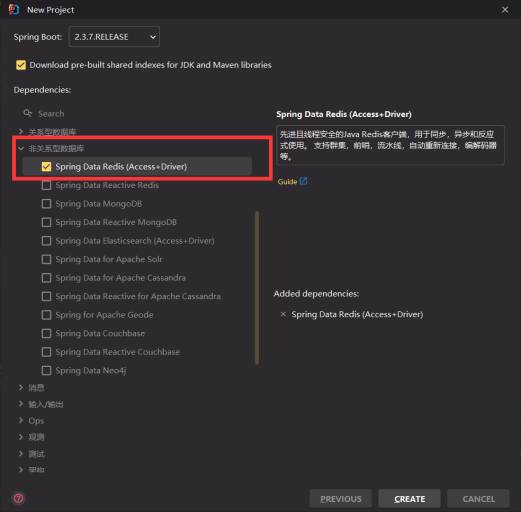
Start the Test
First, add these two lines to your Spring Boot project configuration:
spring.redis.host=127.0.0.1
spring.redis.port=6379
After that, write the following in your Spring Boot test class:
 @Autowired
 private RedisTemplate<Object,Object> redisTemplate;
 //网上一些资料里面没有泛型,为了不报错,我把泛型加上了,可能是版本问题影响的吧。

  @Test
    void contextLoads() {
        //redisTemplate
        redisTemplate.opsForValue().set("xiao","nan");
        System.out.println(redisTemplate.opsForValue().get("xiao"));
    }
Once this is in place, you can run it.
These are the basic pieces you need. But one thing is essential: the Redis program mentioned earlier must already be downloaded and running on your machine, otherwise the test definitely will not work.
Errors I Ran Into
First error
Error message: Unable to connect to 127.0.0.1:6379
Fix: extract the Redis program onto your computer and run it. That solves the issue.
In other words, start the Redis application first, and then run your test class.
Program closes immediately
If the software flashes and closes right away, do this:
Open the command line with Win + R, then run cmd.
Go into the Redis root directory.
Then enter:
redis-server.exe redis.windows.conf
This lets you check whether Redis is actually running.
After that, run the following commands in order to connect successfully:
redis-cli.exeshutdownexitredis-server.exe redis.windows.conf